
Sessions
A session is one workout for one client, at a date and time. For groups, use classes. Open Sessions in the left menu to see them all.
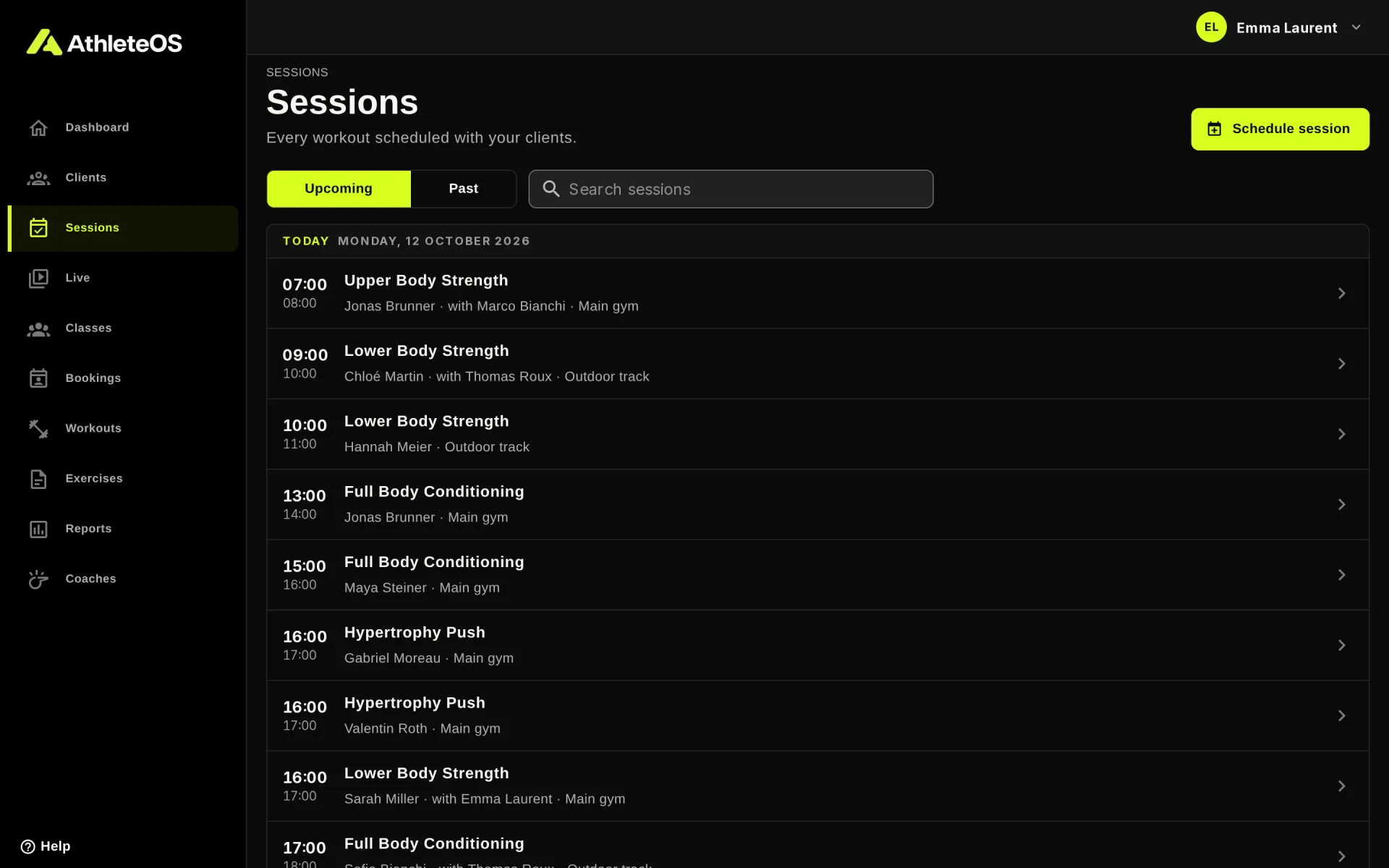
- Upcoming shows today and later, the soonest first. Past shows the sessions before today.
- Search sessions finds a session by its name, the client or the workout.
- Each row shows the time, the client, the coach, the place and the status. Click it to open the session.
Schedule a session
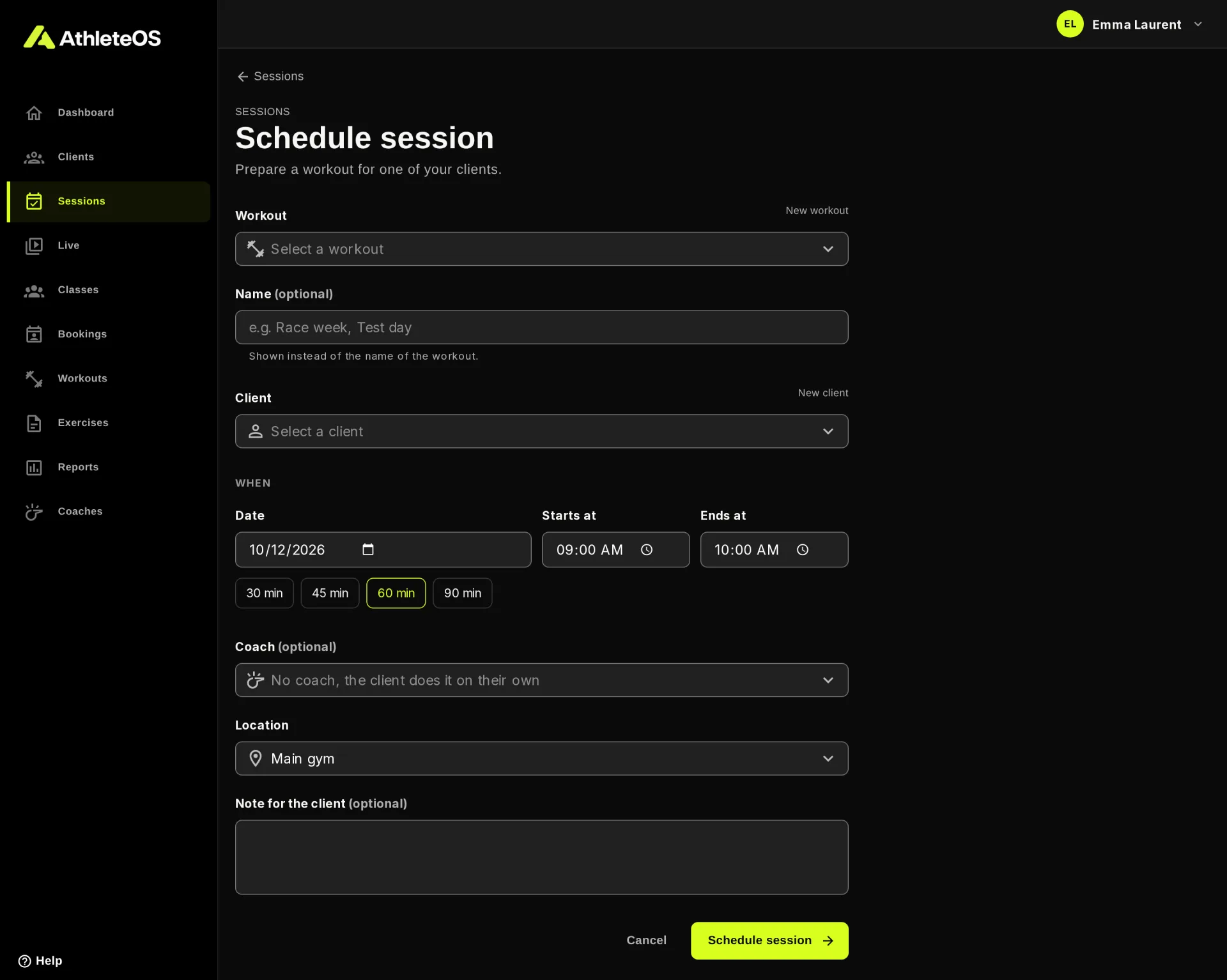
- Click Schedule session. You can also start from the dashboard, or from the profile of a client.
- Pick a Workout and a Client. Type to search. New workout and New client create one if it's missing.
- Optionally, give the session a Name, like "Race week" or "Test day". It's shown instead of the name of the workout.
- Under When, pick the Date and the start and end times. The chips 30 min, 45 min, 60 min and 90 min set the end for you.
- Pick the Coach (Studio plan and above), or leave it empty when the client trains on their own.
- Pick the Location, when the gym has several.
- Optionally, write a Note for the client. They read it in their app, and you see it on the Live page.
- Click Schedule session.
Warnings, not blocks
AthleteOS warns you when the time is outside the opening hours or during a closure, e.g. "Outside opening hours: Mondays 07:00 – 21:00". You can still schedule the session.
AthleteOS refuses a session when the client already has another one at the same time, or when it ends before it starts.
The client sees the session in their app right away. AthleteOS doesn't send them an email for it. If they want one, they can turn on a reminder from the session in their app.
The page of a session
Click a session to see it in full: its status, how many sets are done, the note, and every exercise with the sets the client logged.
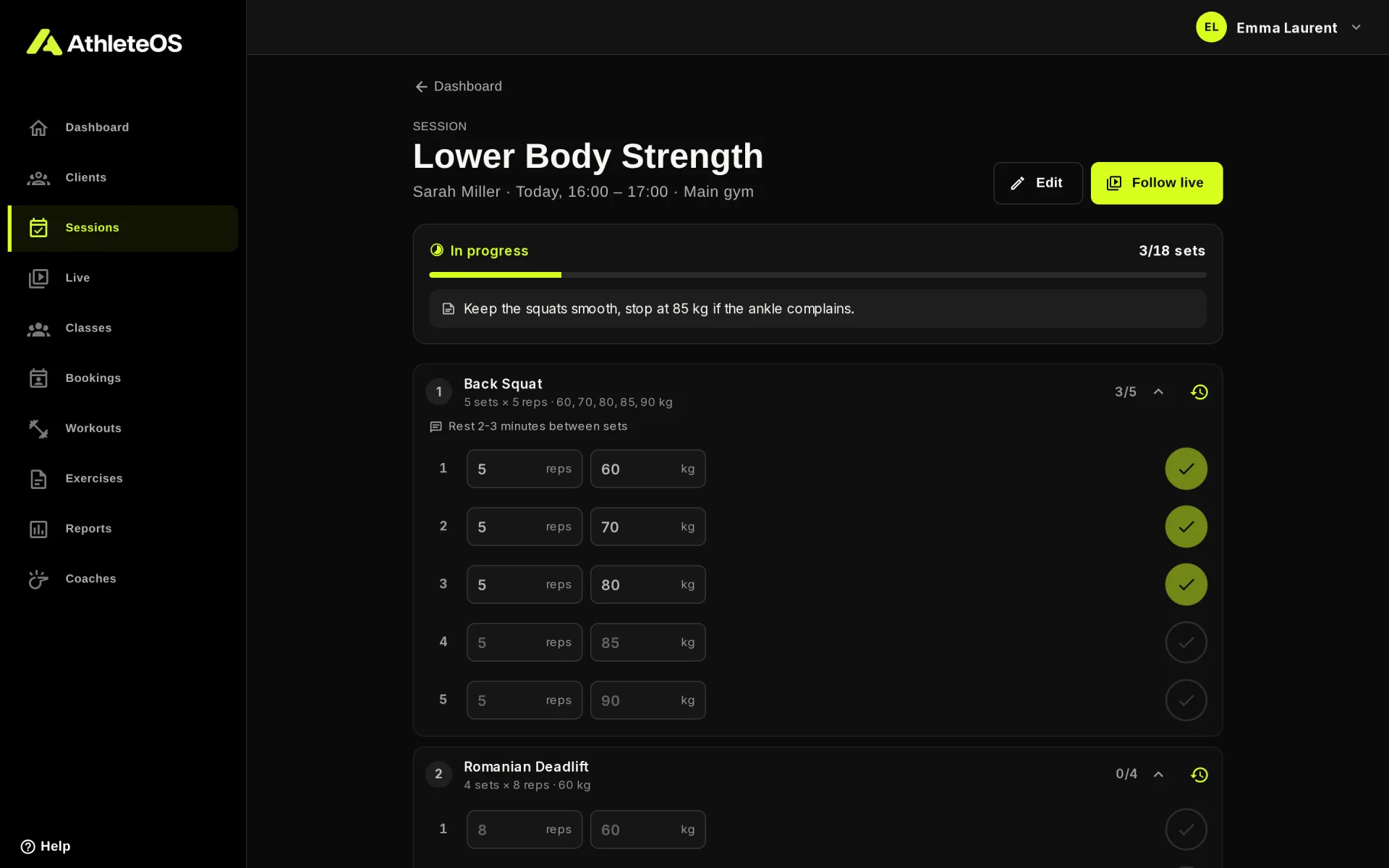
- Edit changes the session.
- Follow live (today only) opens it on the Live page, where you can tick off sets.
- The clock button next to an exercise shows the history of the client on it.
This page is for reviewing: to log sets, use the Live page.
Statuses
| Status | Meaning |
|---|---|
| Needs a workout | A client booked the slot, and a coach still has to pick the workout |
| Not started | Planned, waiting for the client |
| In progress | Started: the client logged a set, or someone pressed Start session |
| Completed | Finished, with how long it took |
Edit or move a session
- Open the session and click Edit.
- Change what you need, e.g. the date or the workout.
- Click Save changes.
If the client asked for a reminder, moving the session sends it again before the new time.
Delete a session
Open the session, click Edit, then Delete. The session leaves the planning, with the sets and notes logged in it. It can't be undone.
Deactivated clients
The sessions of a deactivated client are hidden everywhere: in the lists, on the dashboard, on the Live page and in the reports. They come back if the client is reactivated.