
Exercise library
The exercises are the building blocks of your workouts. Your gym starts with about 120 common exercises, and you can add your own. Open Exercises in the left menu.
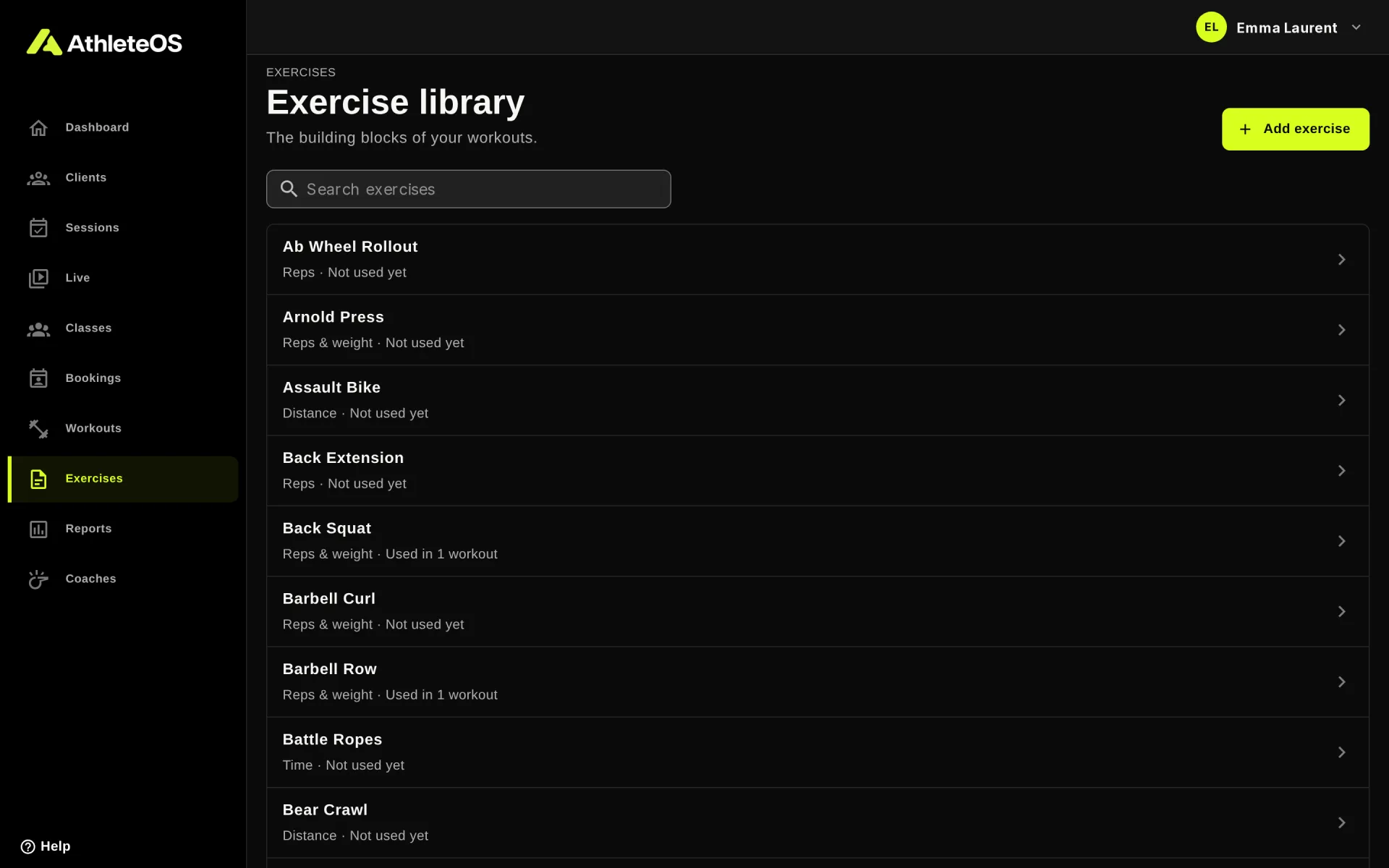
Each row shows how the exercise is tracked, and in how many workouts it's used. Search with Search exercises.
Add an exercise
- Click Add exercise.
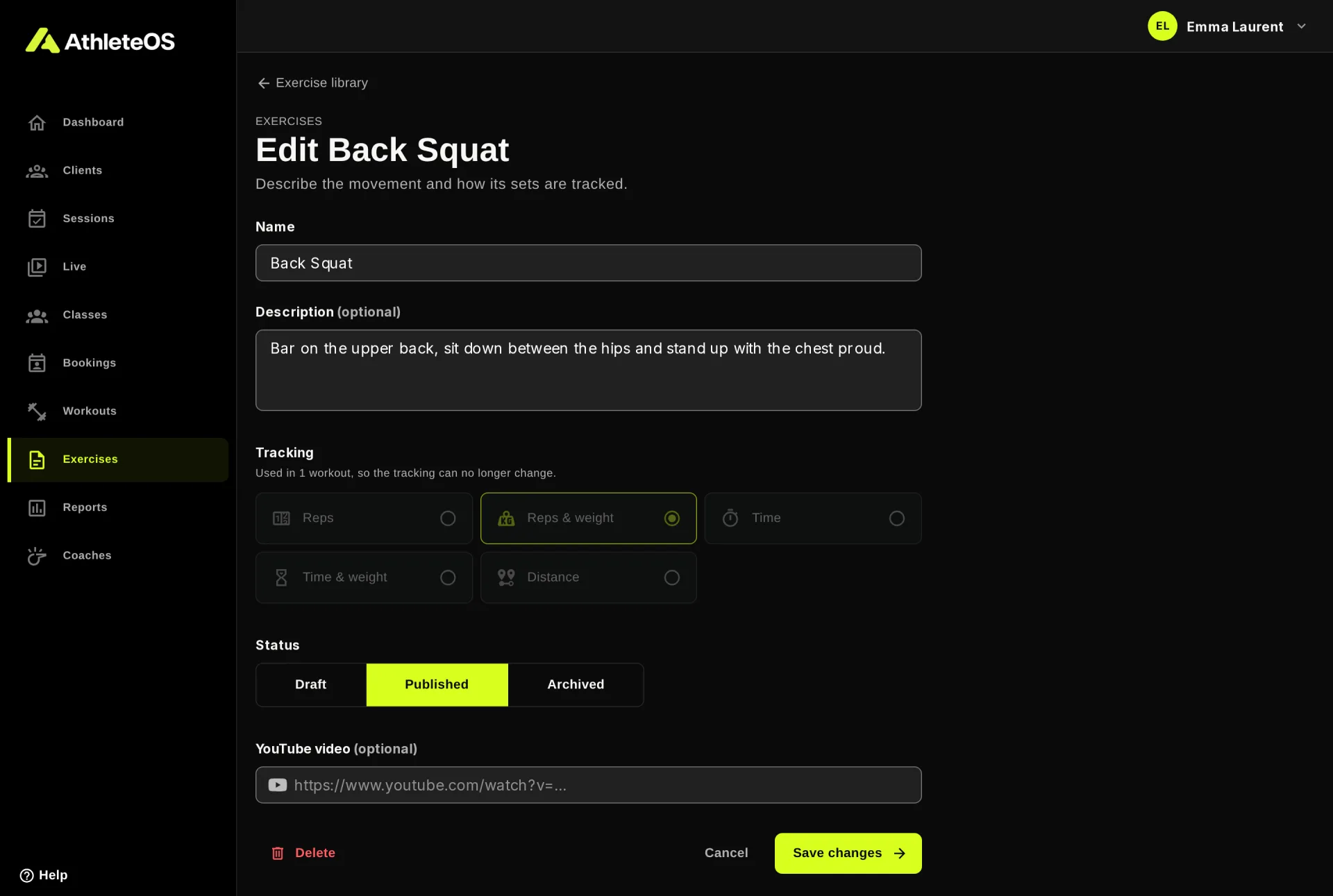
- Enter a Name, e.g. "Back Squat". Each name is used once in the gym.
- Add a Description if you like: setup, cues, common mistakes. Clients read it in their app.
- Choose the Tracking: what is recorded for each set.
- Optionally, paste a YouTube video that demonstrates the movement.
- Click Add exercise.
How sets are tracked
| Tracking | What a set records | Example |
|---|---|---|
| Reps | A number of repetitions | Push-up: 15 reps |
| Reps & weight | Repetitions and a weight in kg | Back Squat: 5 reps × 80 kg |
| Time | A duration in seconds | Plank: 45 sec |
| Time & weight | A duration and a weight | Farmer Carry: 60 sec × 24 kg |
| Distance | A distance in meters | Rowing: 1000 m |
The tracking is locked once used
When an exercise is part of a workout, its tracking can no longer change, so the sets already logged stay meaningful. Create a new exercise instead.
Videos
Paste a link to a YouTube video: a normal link, a youtu.be link or a Shorts link all work. Clients and coaches see the video under the exercise, in the client app and on the Live page.
Draft, published and archived
The Status of an exercise is:
- Published: the normal state.
- Draft: a label for exercises you're still working on. Drafts can still be added to workouts.
- Archived: hidden when you pick exercises for a workout. Workouts that already use it keep it.
Rename or delete an exercise
Renaming an exercise, or changing its video, applies everywhere it's used.
You can only delete an exercise no workout uses. If it's used, AthleteOS offers Archive instead: the exercise stays in its workouts, but no longer shows when you build new ones.