
Training
Your coach prepares your workouts in AthleteOS. At the gym, open the session, follow the exercises and fill in what you did, set by set. Your coach sees it as you go.
Your sessions
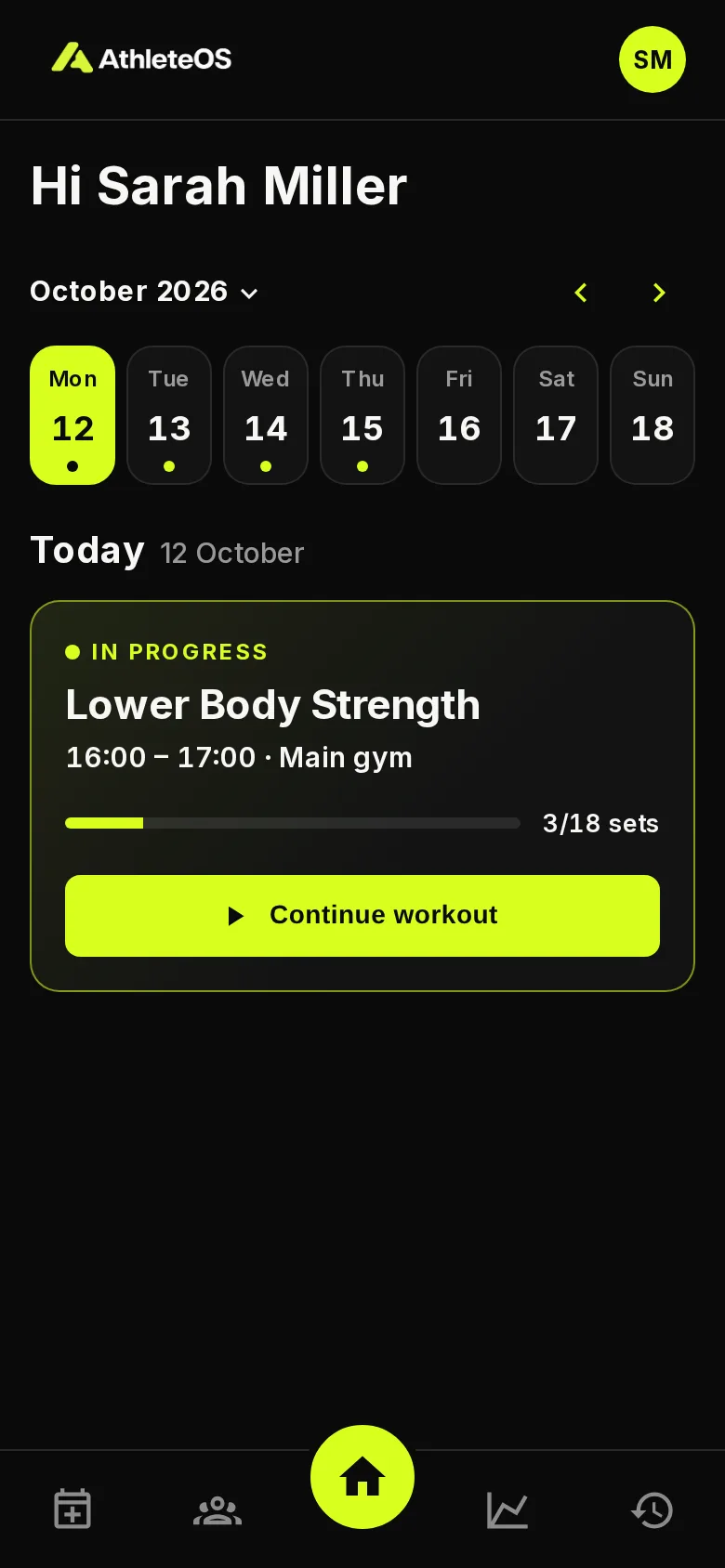
Home shows your day. Swipe the week, or tap a day, to see another one. A dot marks the days with something planned.
Each session shows its workout, the time, the place and how many sets are done. The button changes with the session:
| Button | When |
|---|---|
| Start workout | The session is today |
| Continue workout | You started it |
| See what I did | You finished it |
| Fill it in | A past day you haven't filled in |
| See the workout | A day to come |
| Your coach is preparing the workout | You booked it, and your coach hasn't picked the workout yet |
Open a session
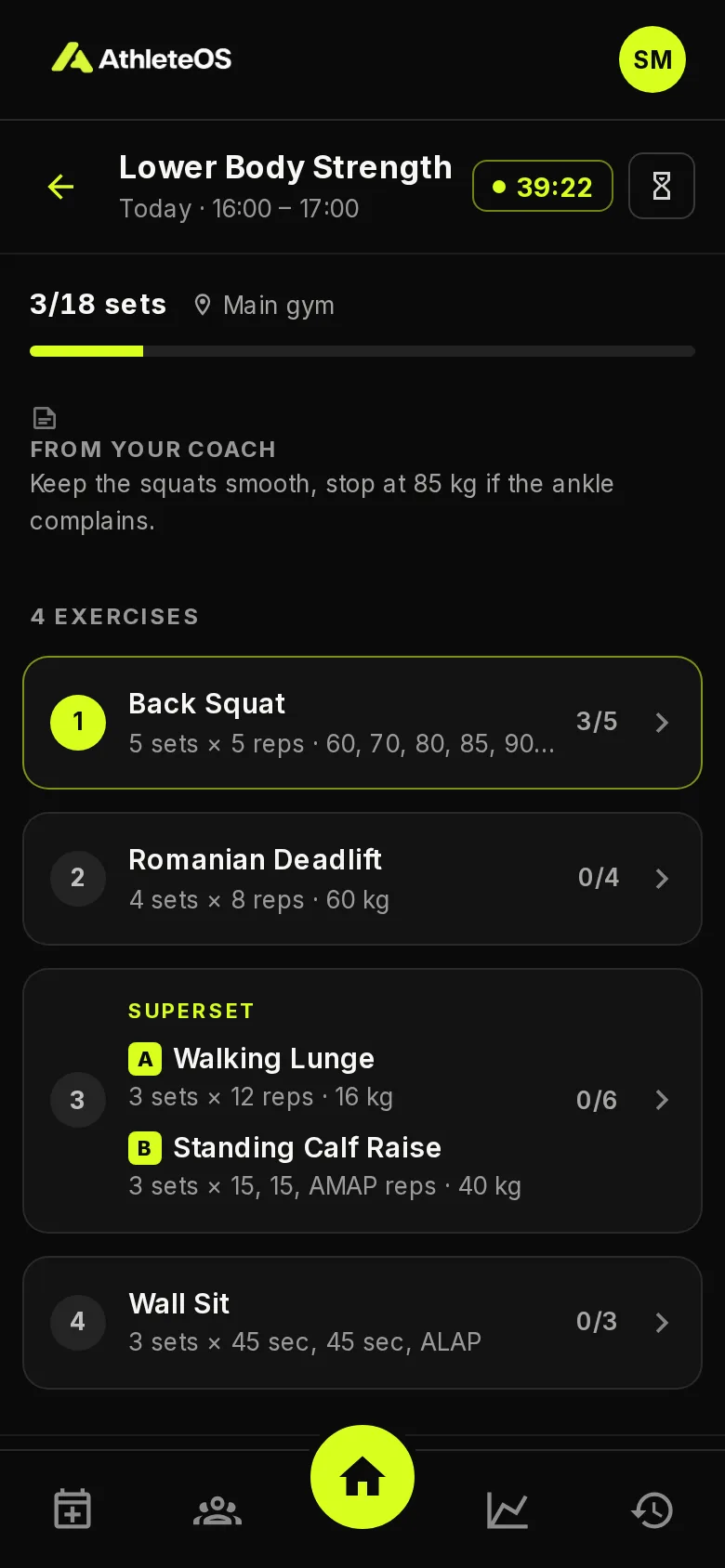
The session shows how many sets are done, the place, the note From your coach, and the list of exercises with their targets, e.g. "5 sets × 5 reps · 60, 70, 80, 85, 90 kg".
A Superset groups exercises you do back to back, marked A and B.
You can fill in a session from its day on, once your coach has picked its workout.
Fill in your sets
- Tap Start workout. The first exercise opens.
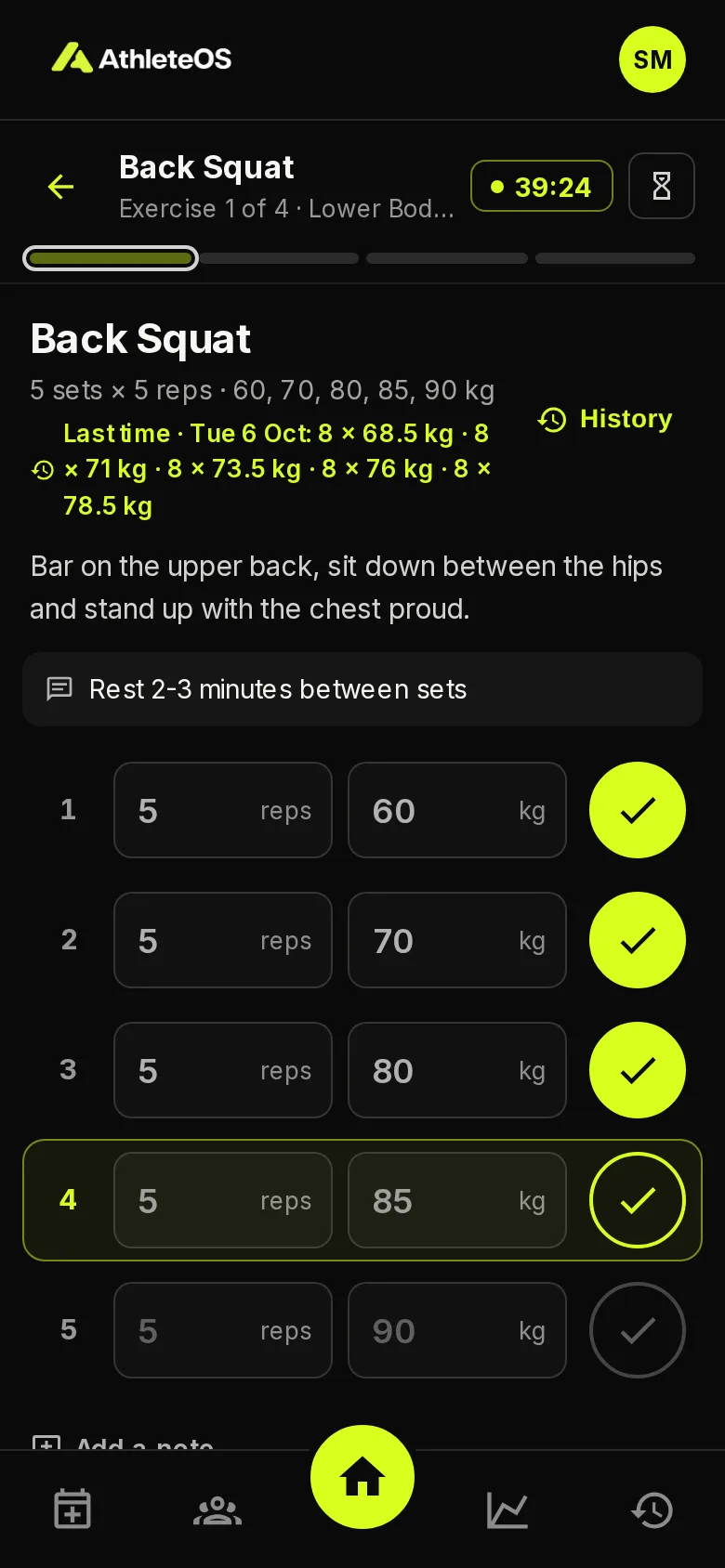
- Do your set, then fill in what you did: reps, kg, seconds or meters, depending on the exercise.
- Tap the check button. The set is saved.
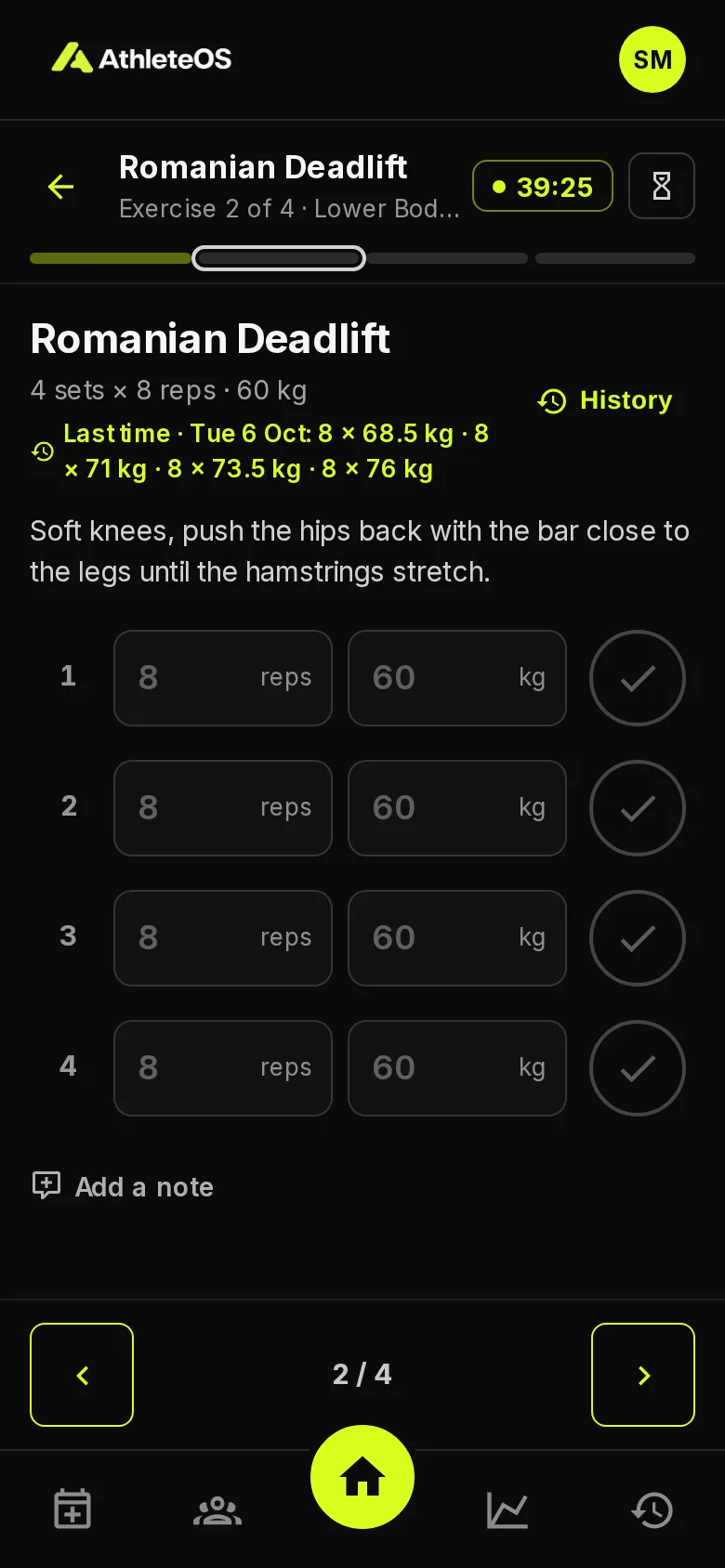
- Swipe, or use the arrows at the bottom, to go to the next exercise.
Faster with the suggestions
Empty fields show a suggestion in grey: your target, or what you did in the set before. If you did exactly that, just tap the check, or press Enter: the suggestion is saved.
- Made a mistake? Change the values and tap the check again. Tap the check of a done set to undo it.
- Last time shows what you did on this exercise last time.
- History shows your best values and your past sessions on the exercise.
- The exercise shows its video, its description and the note of your coach.
Timed sets
For timed exercises, like a plank, tap Start timer · Set 1. The timer counts down, beeps and vibrates at the end. For "as long as possible" sets, it counts up until you stop it. Then tap Log to save the time.
Rest timer
While your session is in progress, the hourglass at the top starts a rest timer. Tap it again to stop it.
Notes
Tap Add a note under an exercise to tell your coach how it went, e.g. "Felt heavy, knee ok". It saves by itself. Your coach sees it.
Finish your workout
When every set is done, tap Finish workout. Your coach sees the session as completed, with how long it took. You can also finish before doing every set, with Finish.
Finished by mistake? Open the session and tap Reopen workout.
Your coach follows along
Your coach may follow your session live, from the gym's computer or tablet. What you fill in shows up for them within a few seconds, and what they tick off for you shows up on your phone.
No connection?
If you see "You seem to be offline, the last change was not saved", check your connection, and fill in the set again.