
Classes
A class is a group event, like Yoga or a bootcamp, run by a coach. Clients book a seat from their app, and coaches can register them too. Classes are part of the Studio plan and above. Open Classes in the left menu.
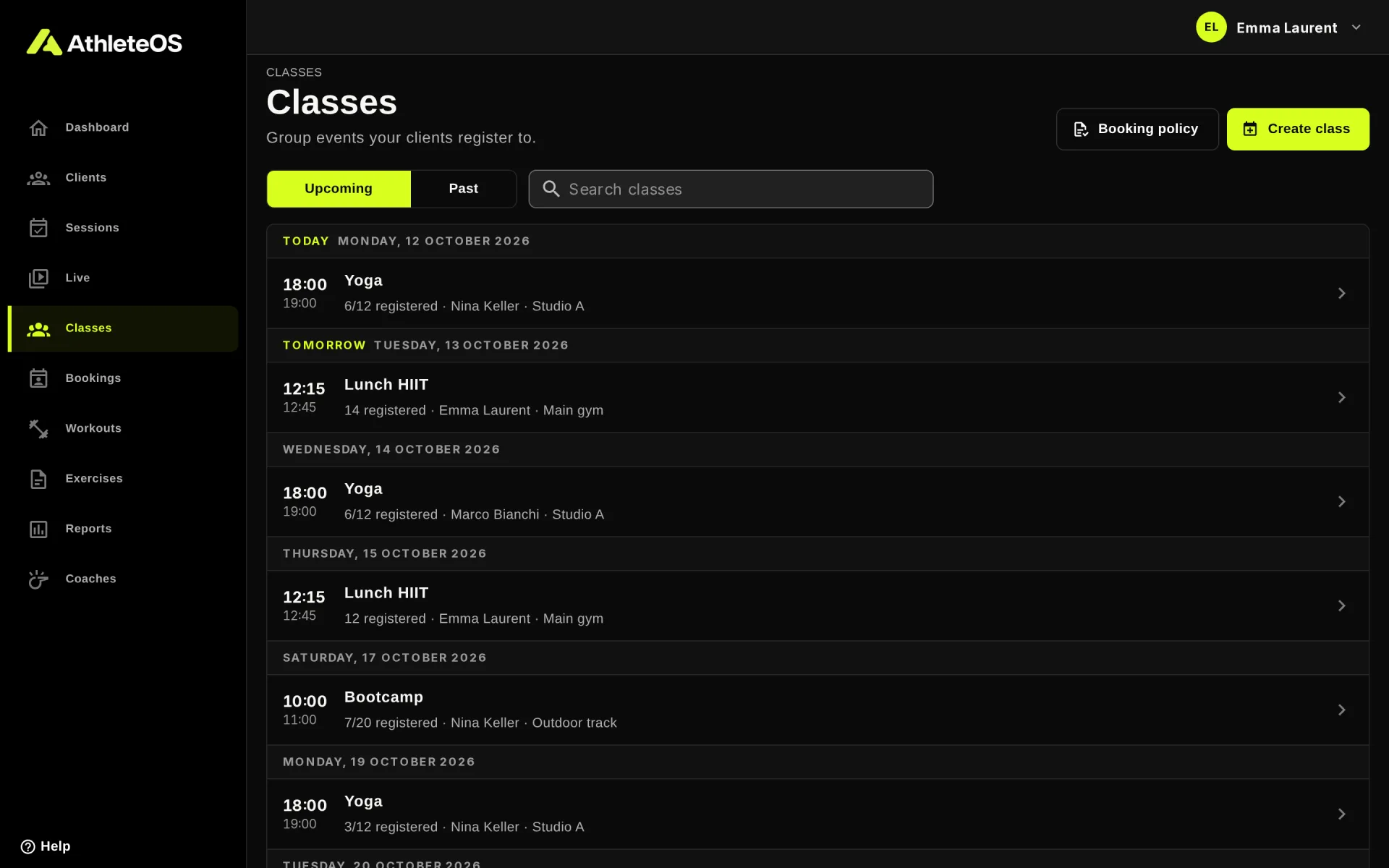
Each row shows the time, the title, how many clients registered (or Full), the coach and the place. Upcoming and Past switch between the classes to come and those over. Click a class to open it.
Create a class
- Click Create class.
- Enter a Title, e.g. "Yoga", and pick the Coach who runs it.
- Add a Description: what to expect, what to bring. Clients read it when they book.
- Under When, pick the date and the times. The chips 30 min to 90 min set the end for you.
- Pick the Location, when the gym has several.
- Under Seats, choose Unlimited, or Limited with a number of seats.
- Optionally, click Register clients to add clients right away.
- Click Create class.
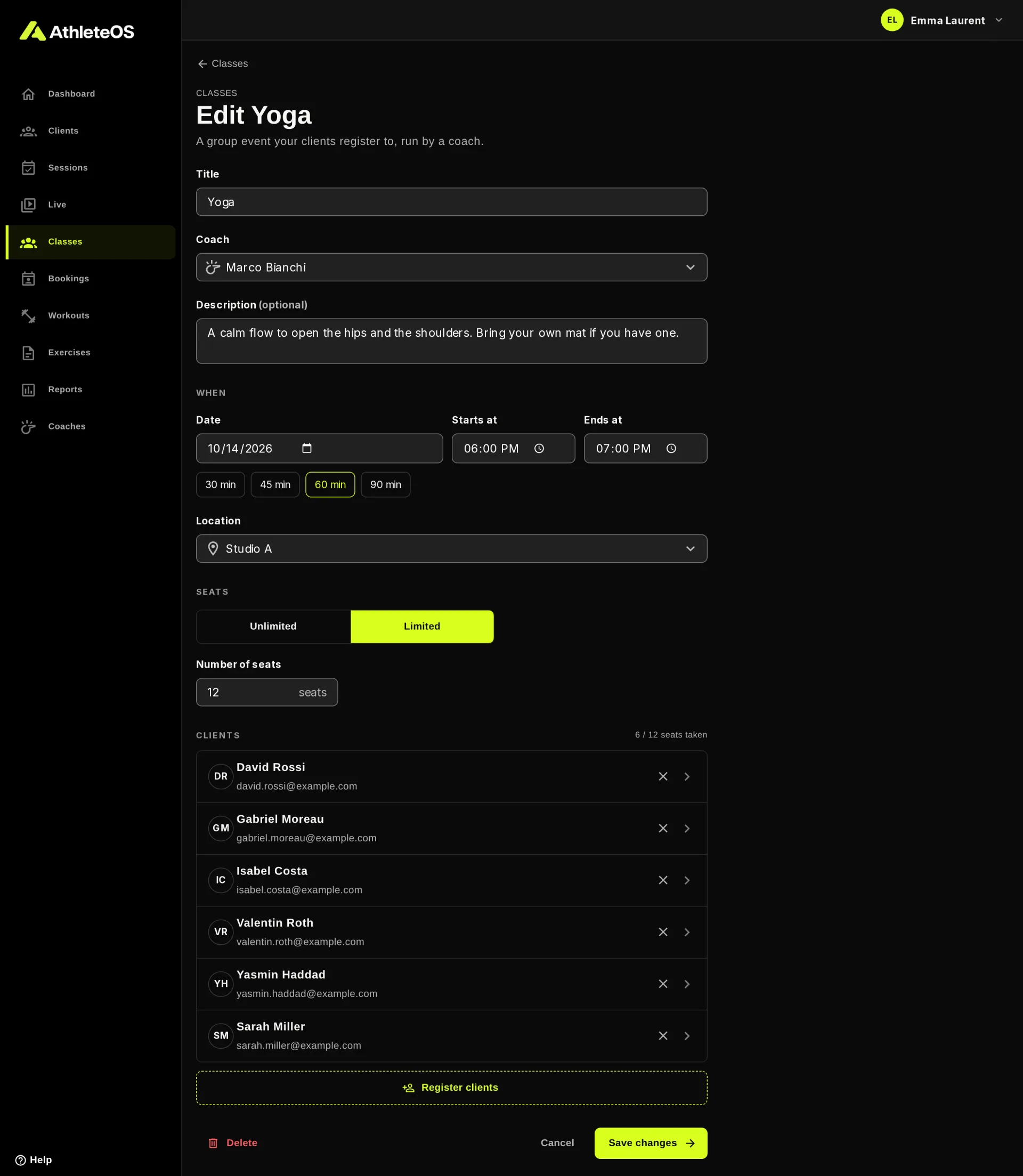
Each class has a single date. For a weekly class, create one class per week.
Register and remove clients
On the page of a class:
- Register clients opens a list of your clients. Pick them, then click Register 2 clients (the button counts them). You can't register more clients than the seats left.
- The × next to a client removes them from the class.
On an existing class, the change is saved at once. Coaches can also remove clients after the cancellation deadline that applies to clients.
How clients book
When Let clients book classes is on in the settings, clients see the classes with seats left in their app and book them. They can cancel until the deadline you set, e.g. 12 hours before the start. See Booking sessions and classes.
When it's off, only coaches register clients. Clients still see the classes they're registered to on their home.
Emails
No email is sent when a class is created, changed or deleted. Clients who turned on a reminder get one 24 hours before the class, and again if you move it.
Move or delete a class
- To move a class, open it, change the date or time, and click Save changes.
- To delete it, open it and click Delete. Its registrations are removed too, and it can't be undone. Let the registered clients know: AthleteOS doesn't email them.
The booking policy
Admins find Booking policy at the top of the list. It opens the settings where you set the cancellation deadline and the text clients read before booking. See Settings.