
Settings
The settings say how the gym works, for every coach and client. Only admins can change them. Open the menu under your name, top right, and choose Settings.
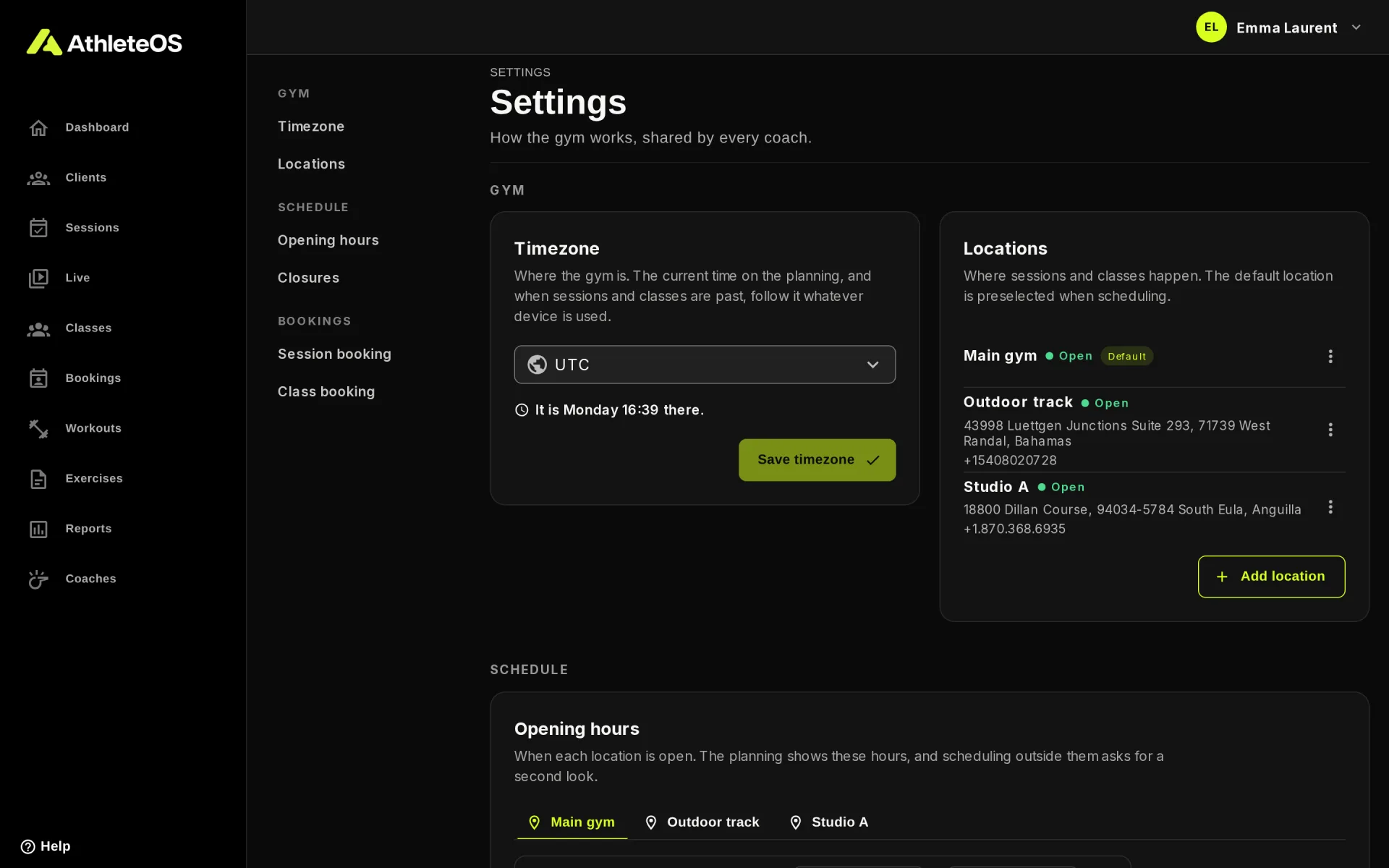
The settings are grouped in Gym, Schedule and Bookings. Each section saves on its own.
Timezone
Where the gym is. The current time on the planning, and when sessions and classes count as past, follow it, whatever device people use.
Search for a city, e.g. "Zurich", and click Save timezone. Use followed by a timezone picks the one of your device.
Locations
On the Club plan, a gym can have several locations, like a main gym, a studio and an outdoor track. Sessions, classes and booking periods each happen at one location.
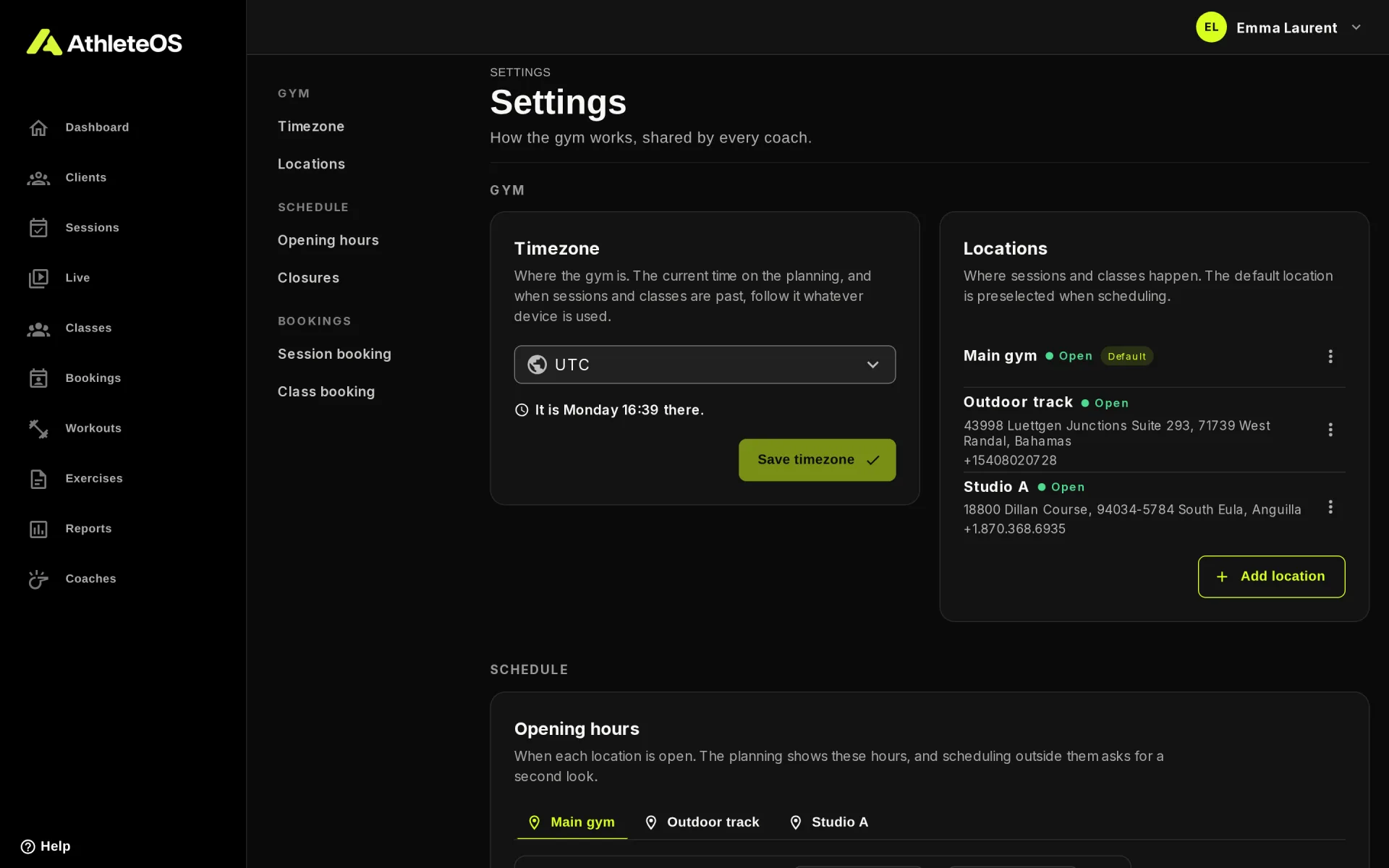
- Add location creates one, with its address and phone. It starts with the opening hours of the default location.
- The ⋮ menu of a location has Edit, Make default and Close location.
- The default location is preselected when coaches schedule a session or a class.
Close a location
Closing a location hides it from coaches and clients: nobody can schedule or book there anymore. Past sessions and classes keep it, and you can Reopen it at any time from Closed locations.
You can't close the default location, or a location that still has sessions or classes to come: move or cancel them first.
Closed for a few days only?
For holidays or works, add a closure instead of closing the location.
On the Solo and Studio plans, the gym has a single location, and the opening hours and booking periods apply to it.
Opening hours
When each location is open. The planning shows these hours, and scheduling outside them asks for a second look.
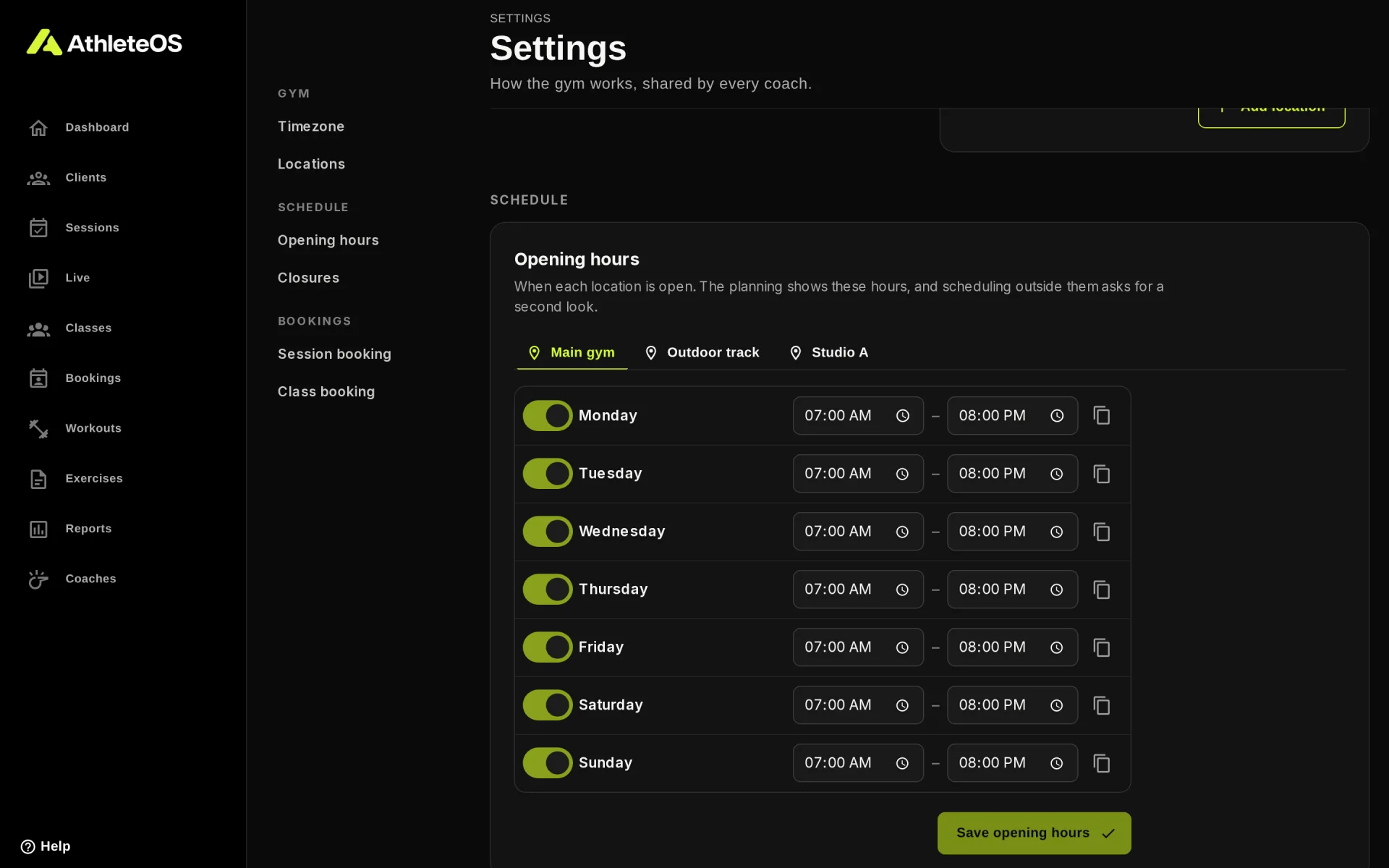
- Turn a day off to mark it Closed.
- Set the hours of each open day.
- Copy the hours of Monday to… copies them to other days.
- With several locations, each has its own tab.
Click Save opening hours when you're done.
Closures
Days, or hours of days, when the gym is closed, e.g. public holidays. The planning shows the gym closed, and nothing can be booked then.
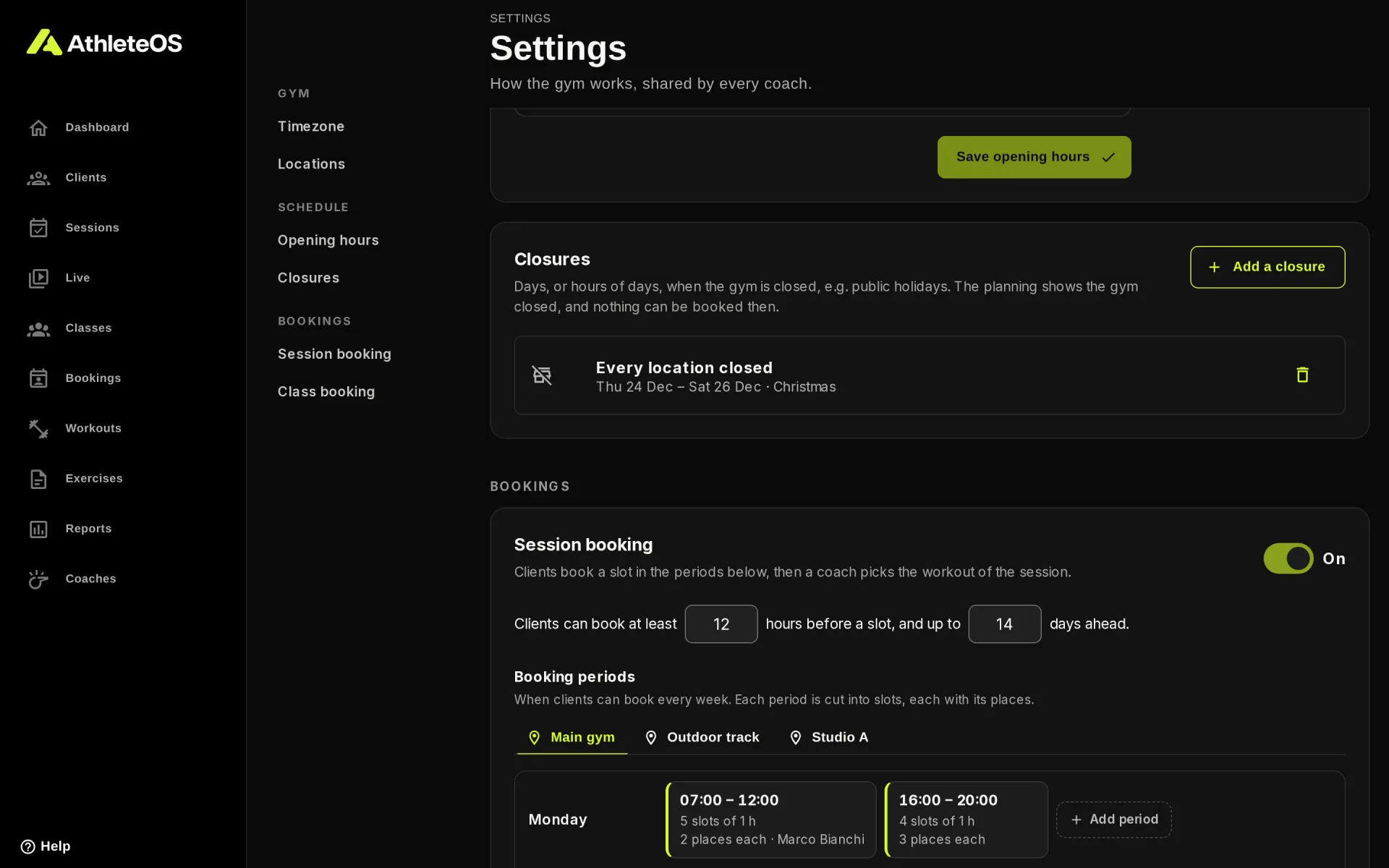
- Click Add a closure.
- Pick the First day and the Last day. Untick The whole days to close for a few hours only.
- With several locations, choose one, or leave Every location.
- Add a Reason, e.g. "Christmas". Coaches see it on the planning.
- Click Close.
WARNING
A closure doesn't move or cancel what's already planned. AthleteOS tells you how many sessions remain then: move or cancel them yourself.
Session booking
Let clients book a session themselves, in the periods you choose. A coach then picks the workout of each session. Part of the Studio plan and above.
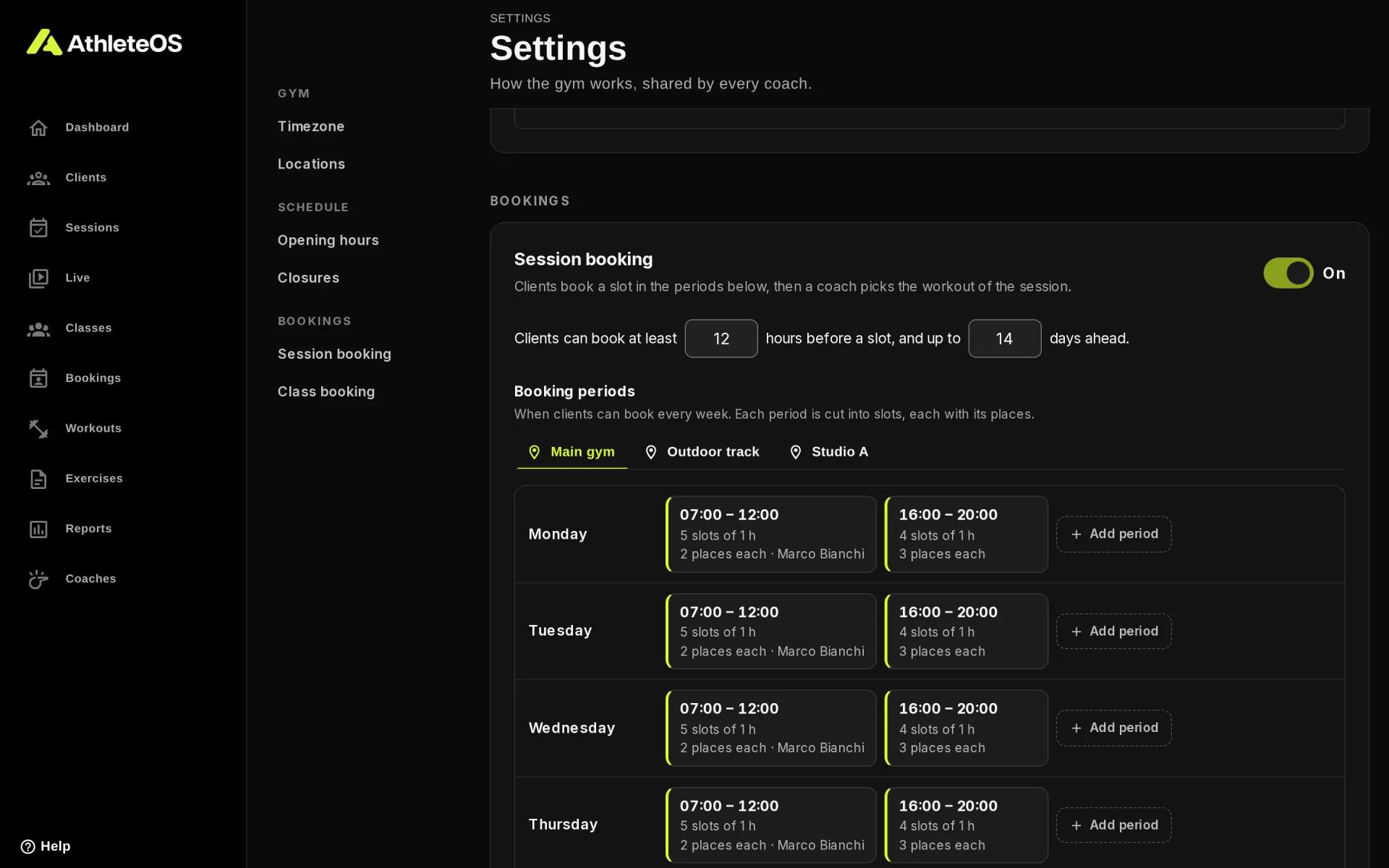
Turn it on
- Turn on Let clients book sessions. It's off by default.
- Set the rules: Clients can book at least 12 hours before a slot, and up to 14 days ahead. Change the numbers and click Save.
- Add at least one booking period (below).
Clients see Book a session in their app once booking is on and a booking period is to come. Coaches see the Bookings page.
Booking periods
A booking period is when clients can book every week, cut into slots.
- On a day, click Add period.
- Pick the Days, e.g. Monday to Friday, and the Time, e.g. 07:00 to 12:00.
- Choose how long Each slot lasts: 30, 45, 60 or 90 minutes.
- Set the Places per slot: how many clients can book the same slot.
- Optionally, pick a Coach. Their slots close while they're away, and they get an email when a client books.
- Check the preview, e.g. "5 slots × 2 places = up to 10 bookings a day", and click Add.
Click a period to edit it, copy it to other days, or delete it. Removing a period doesn't cancel the sessions already booked in it.
AthleteOS notes when a period is outside the opening hours, but clients can still book it.
Special dates
Add special hours opens extra booking hours on given dates, e.g. a holiday weekend: one day, or between two dates.
Class booking
Part of the Studio plan and above.
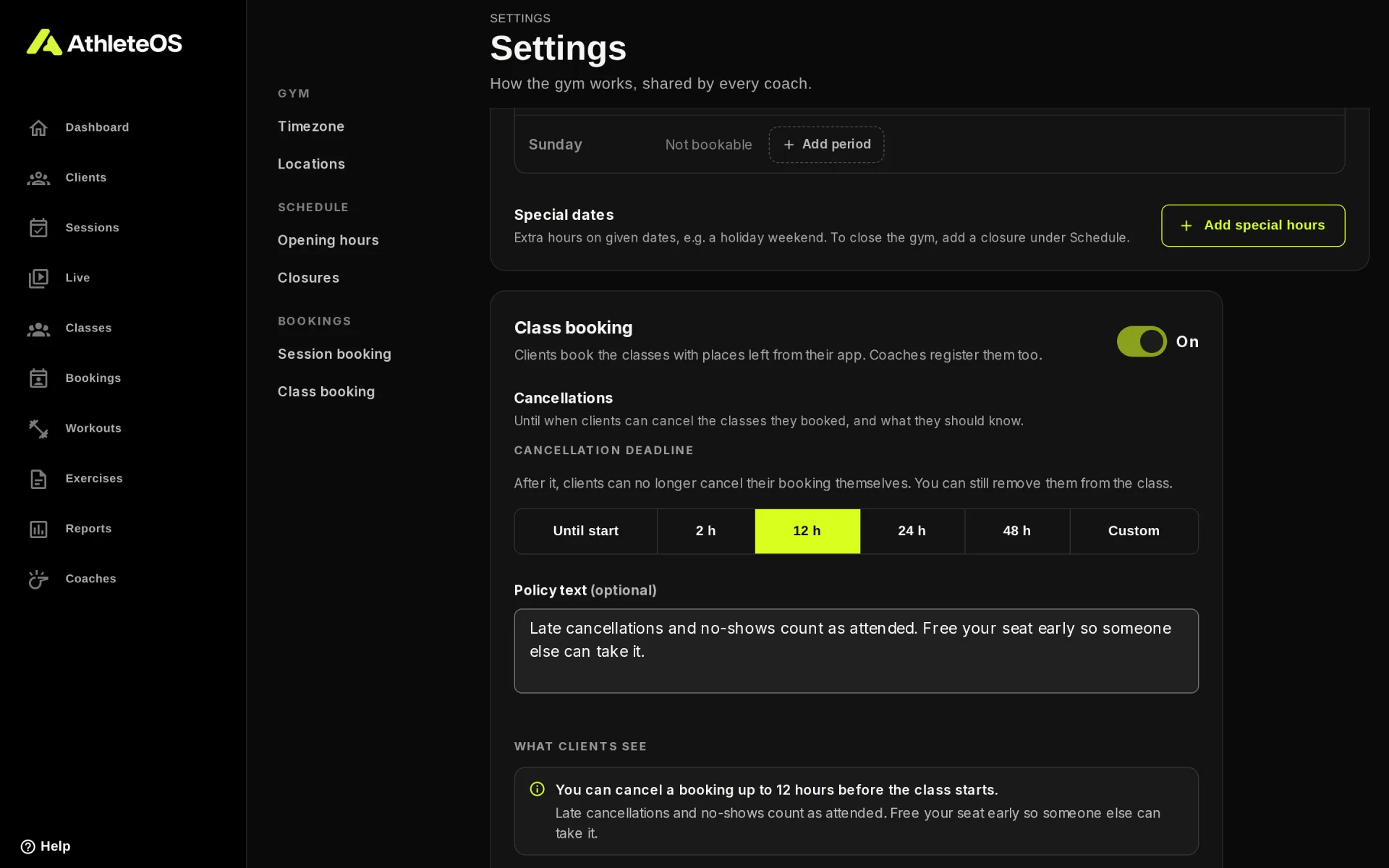
- Let clients book classes (on by default): clients book the classes with seats left from their app. When it's off, only coaches register clients, and clients only see the classes they're registered to.
Cancellations
- Cancellation deadline: until when clients can cancel what they booked themselves: Until start, 2 h, 12 h, 24 h, 48 h, or Custom, up to a week. After it, only a coach can remove them.
- Policy text: what clients read before they book, e.g. "Late cancellations and no-shows count as attended."
- What clients see previews the notice.
Click Save booking policy.
INFO
The cancellation deadline applies to booked sessions too, not only to classes.
Gym tablets
The settings of the gym tablets, like Ask for a PIN, are on their own page. See Gym tablets.