
Clients
Everyone you coach, in one place. Every coach of the gym sees and manages every client. Open Clients in the left menu.
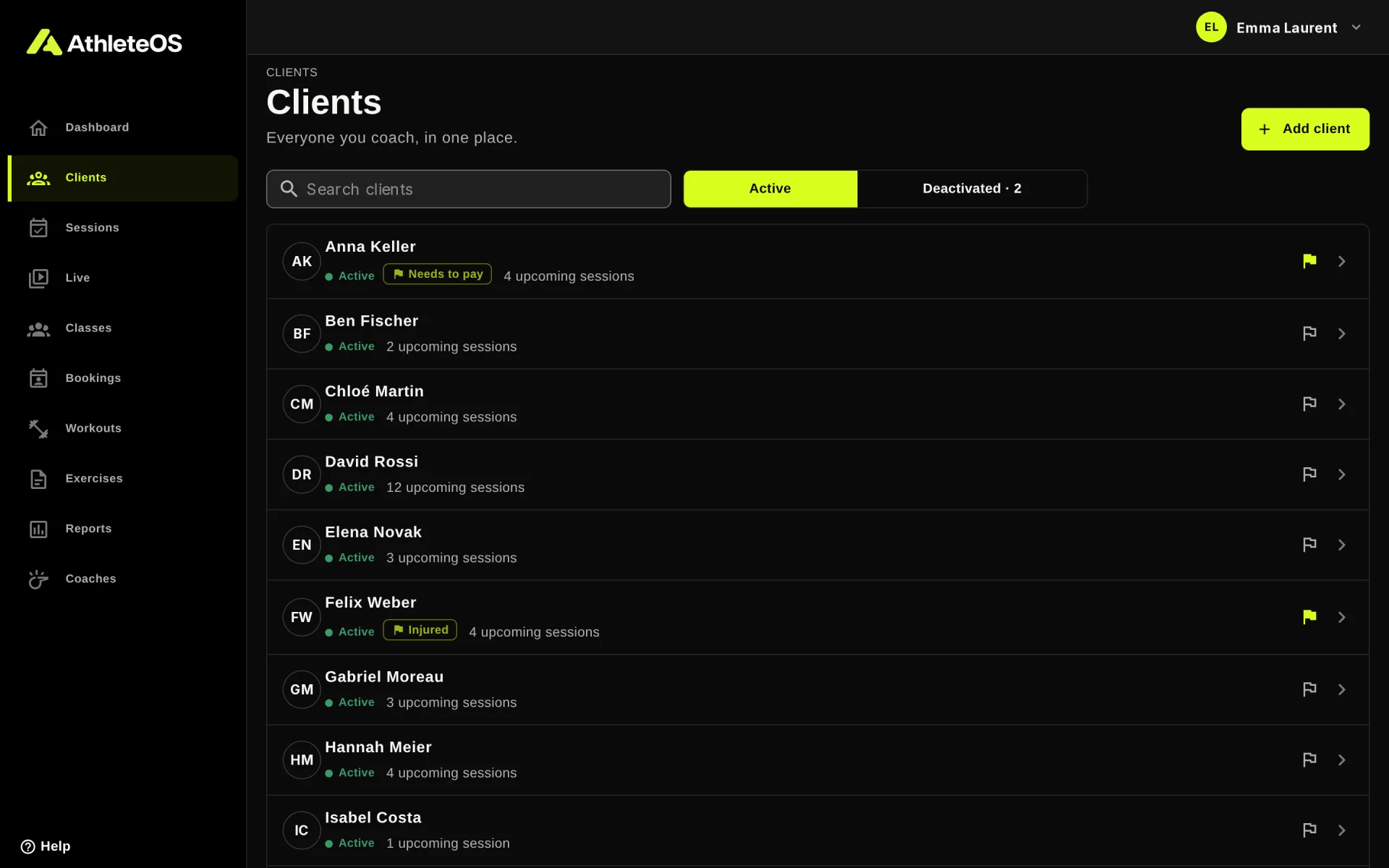
Each row shows the client, a status if they have one, and how many sessions are coming up. Search by name or email with Search clients. Click a row to open the profile.
Add a client
- Click Add client.
- Fill in the Full name and the Email address. Both are required, and two clients can't share an email.
- Add more if you like: phone number, birth date, gender, address, and a Coach note for goals, injuries or preferences. Clients don't see the coach note in their app, but it's part of their data if they download it.
- Click Add client.
The client receives a "Welcome to AthleteOS" email with a Set my password button, then signs in to the client app.
Room in your plan
Each plan allows a number of active clients. When the plan is full, AthleteOS refuses to add another one: deactivate a client you no longer coach, or change plan. Deactivated clients don't count.
The profile of a client
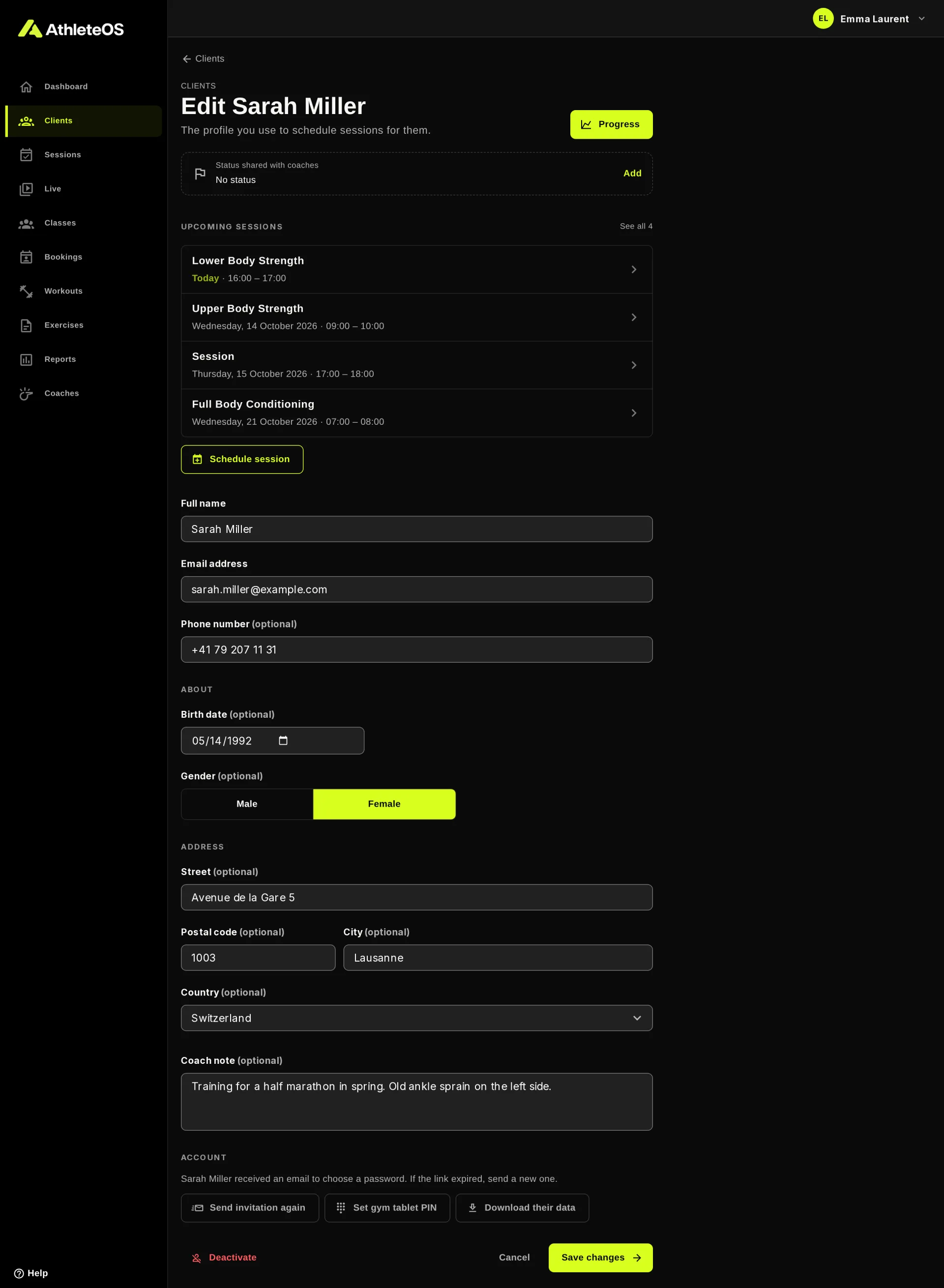
At the top of the profile:
- Progress opens the progress of the client.
- Status shared with coaches shows their status, with Add or Change.
- Upcoming sessions lists the next five, with See all and Schedule session.
Below are their details. Change what you need and click Save changes.
Give a client a status
A status is a short note every coach sees on the planning, the live view and the lists, like "Injured", "Needs to pay" or "On holiday".
- In the list, click the flag on the row of the client. Or click Add on their profile.
- Type a status, or tap one of the suggestions. The suggestions include the statuses your gym uses most.
- Click Save.
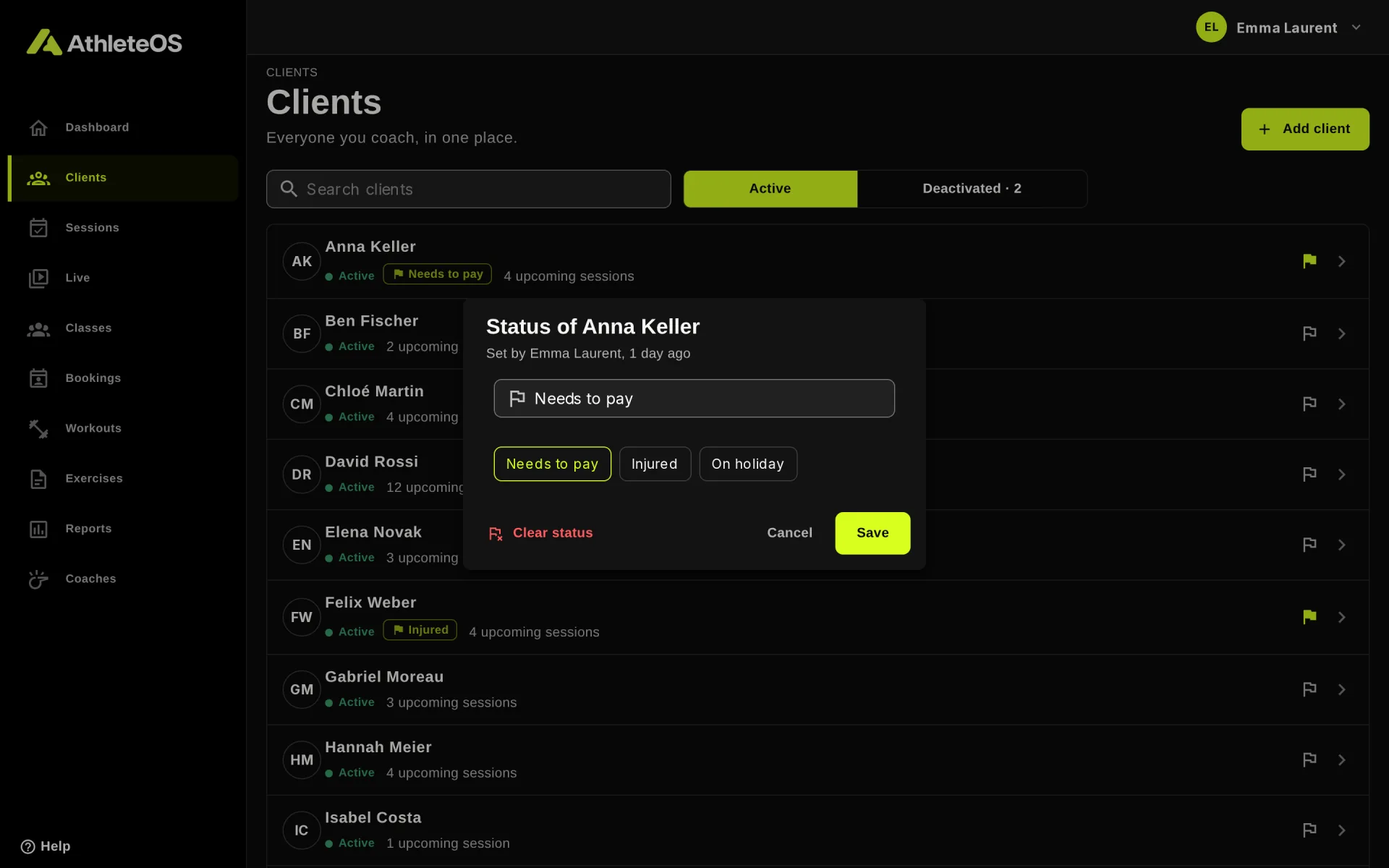
A status is 40 characters at most. The dialog shows who set it and when. Clear status removes it.
Resend the invitation
The link of the invitation works for 7 days. If the client didn't use it in time:
- Open their profile.
- Under Account, click Send invitation again.
A new link goes to their email, and the old one stops working.
Set a gym tablet PIN
On the Studio plan and above, clients sign in on the gym tablets with their name and a 4-digit PIN. Clients set their own PIN in their app, but you can set it for them:
- Open their profile.
- Under Account, click Set gym tablet PIN.
- Enter the 4 digits twice, then click Save PIN.
Tell the client their PIN. AthleteOS refuses PINs that are too easy to guess, like 1234, 1111 or the client's birth year.
Follow their progress
Click Progress on the profile of a client.
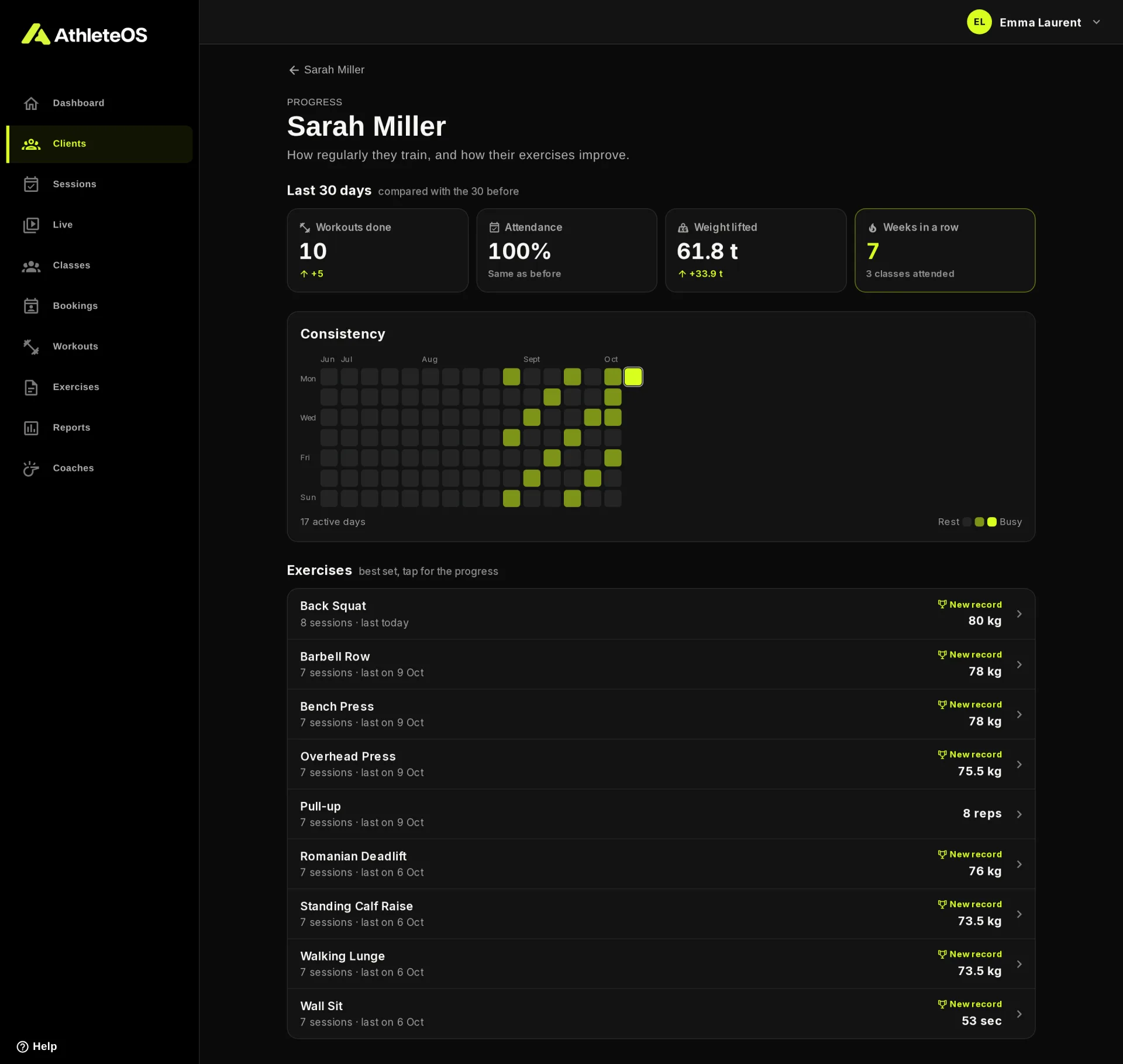
- Last 30 days: workouts done, attendance, weight lifted and weeks in a row, compared with the 30 days before.
- Consistency: the days they trained, over 16 weeks.
- Exercises: their best set on each exercise. Click one to see its history and a chart of their progress.
Deactivate a client
When a client stops coming, deactivate them rather than deleting them.
- Open their profile.
- Click Deactivate at the bottom, then confirm.
A deactivated client can no longer sign in, coaches can no longer choose them, and they no longer count in your plan. Their sessions are hidden, not deleted.
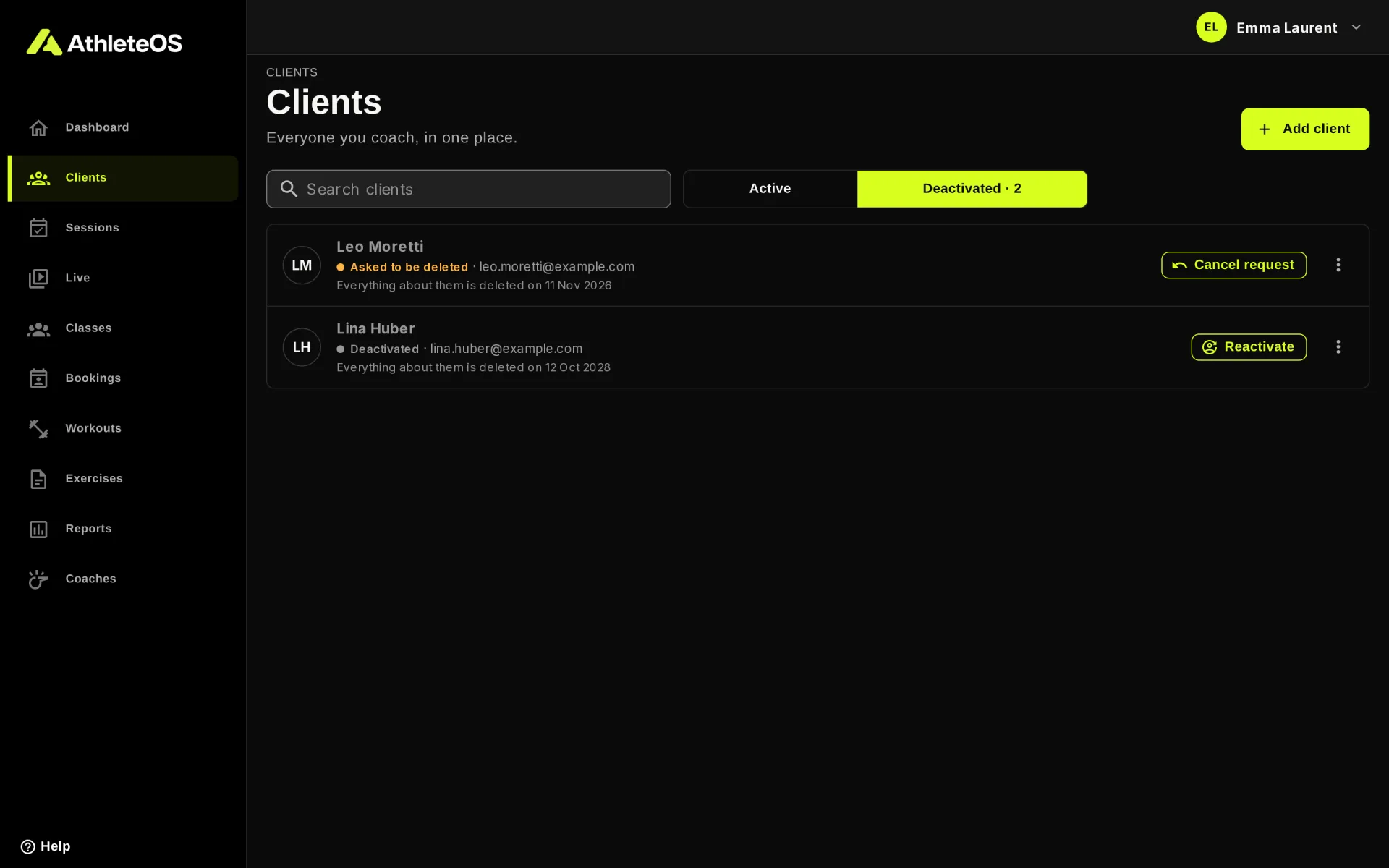
To bring them back, open Clients, choose Deactivated, and click Reactivate on their row. Everything is as it was.
Kept for 24 months
A client who stays deactivated for 24 months is deleted for good, with their sessions and sets. The list of deactivated clients shows the date. See Client data and privacy.
Clients who asked to be deleted
Clients can close their account from their app. They then show as Asked to be deleted in the deactivated clients, to admins only, and everything about them is deleted 30 days later. Admins can cancel the request in that time. See Client data and privacy.