
Coaches and rights
On the Studio plan and above, the gym works as a team. Admins invite the coaches, choose what they can do, and take their access away when they leave. Open Coaches in the left menu.
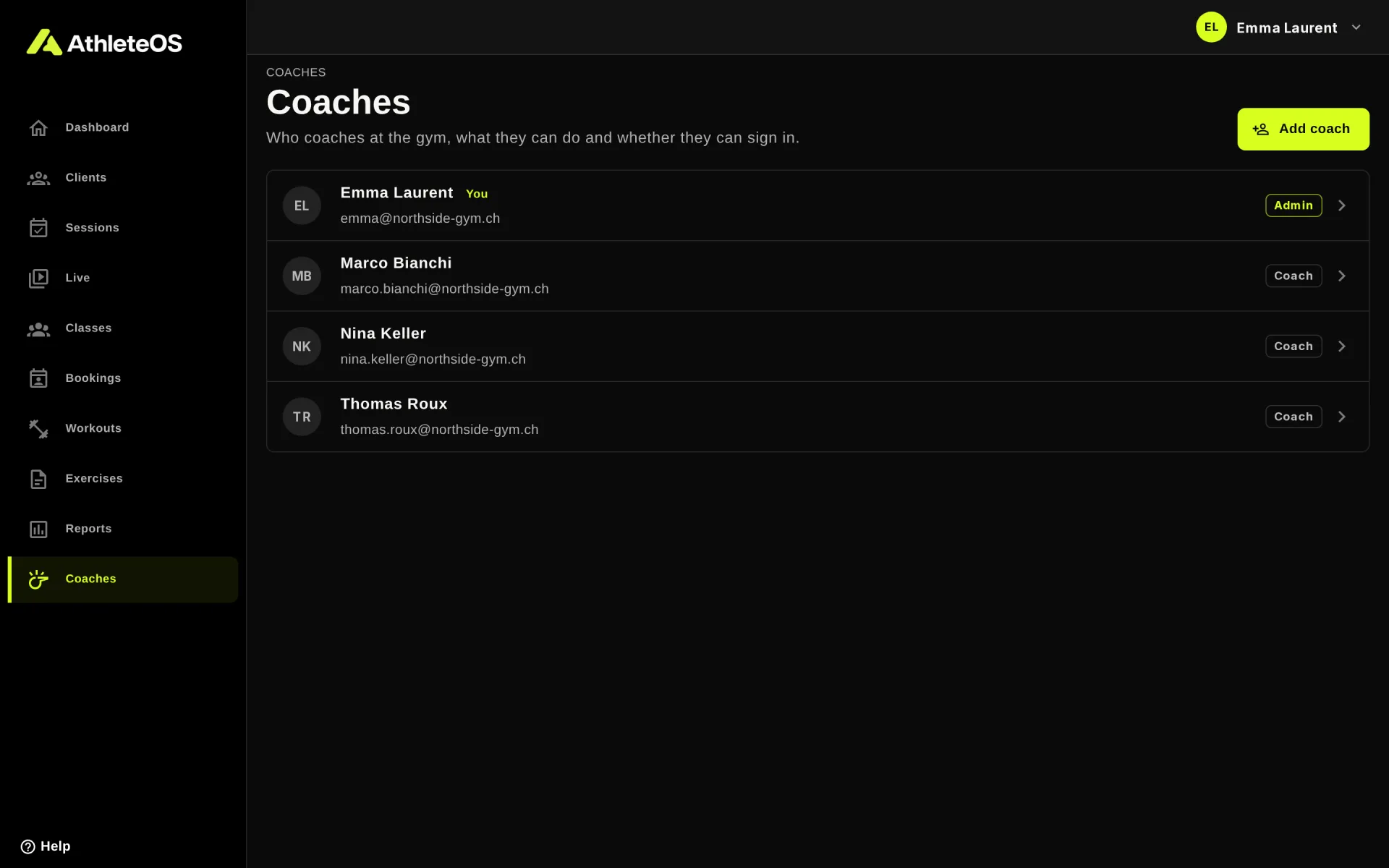
Each row shows the name and email, and a badge: Admin or Coach, Invited while they haven't chosen their password, and No access when their access is off. Your own row says You.
Coach or admin
| Rights | What they do |
|---|---|
| Coach | Clients, sessions, classes, workouts, exercises and the live view |
| Admin | Everything a coach does, plus the coaches, the settings, the gym tablets, the reports and the subscription |
All coaches share the same clients, sessions and workouts: anyone can change or delete what another coach created.
Invite a coach
- Click Add coach.
- Enter their Name and Email.
- Under Rights, choose Coach or Admin.
- Click Invite coach.
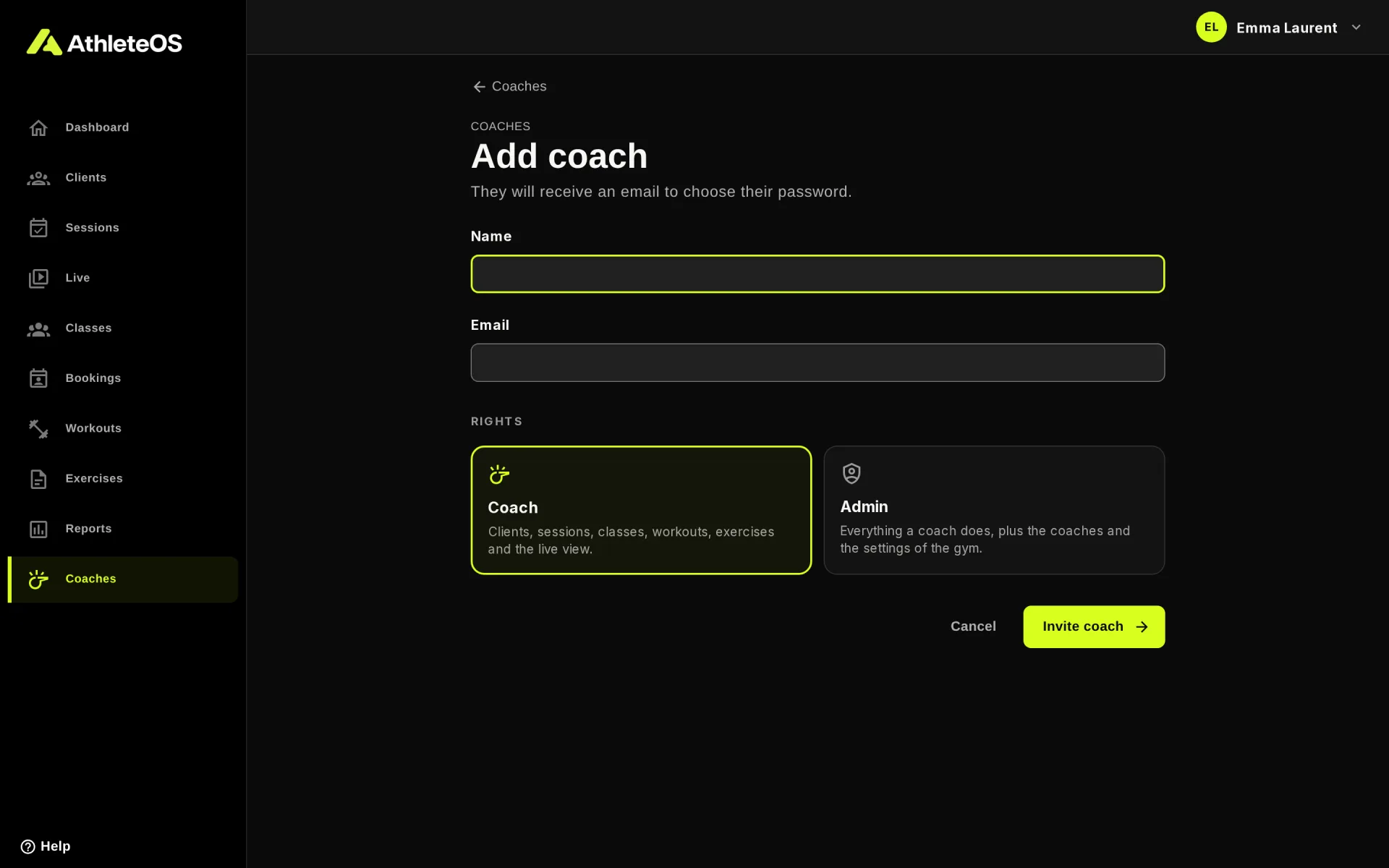
They receive a "Welcome to AthleteOS" email with a Set my password button. The link works for 7 days. If it expired, open the coach and click Send invitation again.
Room in your plan
Each plan allows a number of coaches: 5 on Studio, 15 on Club. Invited coaches count, coaches without access don't.
Change the rights of a coach
Open the coach, choose Coach or Admin, and click Save changes. You can't change your own rights: another admin can.
When a coach leaves
Coaches are never deleted, so their past sessions and classes keep their name.
- Open the coach.
- Under Access, turn off Can sign in.
- Click Save changes.
They're signed out at once and can no longer sign in. Their sessions and classes stay. Turn their access back on at any time.
The gym always keeps at least one admin who can sign in, and you can't take your own access away.
Coach accounts
Coaches can't change their own name, email or password in the app. An admin changes their name and email here. To change their password, they use Forgot your password? on the sign-in page.