Dashboard
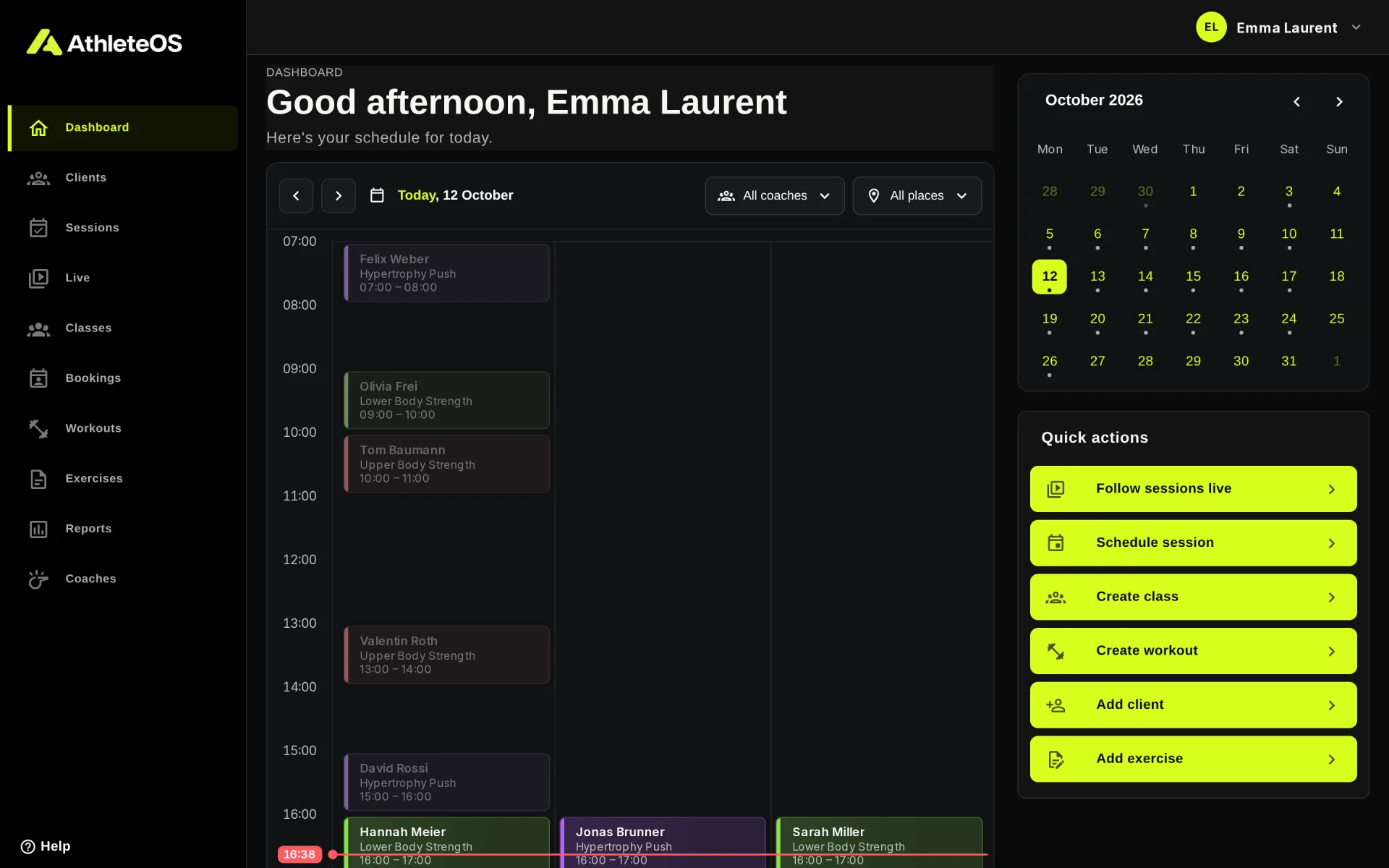
The dashboard is the home of the coach app. It shows the planning of the day: every session and class, on a timeline. You land here when you sign in, or by clicking Dashboard in the left menu.
The planning of the day
The timeline covers the opening hours of the gym that day, and widens on its own when something falls outside them.
- A red line with the time shows now when you look at today.
- Sessions at the same time sit side by side.
- Sessions already over are washed out.
- Each card shows the client, the workout and the time. A class card shows its title, how many clients registered and their avatars, e.g. "Class · 9/12".
The colour of a card comes from its title: the same workout or class always gets the same colour, so you can spot them at a glance. The colour doesn't show a status.
When nothing is planned, the dashboard says so, or tells you the gym is closed that day.
Change the day
- Use the arrows to go to the previous day or the next day.
- Click the date to pick another day in a calendar.
- Or click a day in the month calendar on the right. A dot marks the days with a session or a class.
Filter by coach and place
- Coach (Studio plan and above): by default, you see your own sessions and classes, plus the sessions without a coach (clients training on their own). Choose All coaches or another coach to see their day.
- Place (when the gym has several locations): choose All places or one location.
Open a session or a class
Click a card to see its details: the time, the location, the client or the registered clients, and the notes.
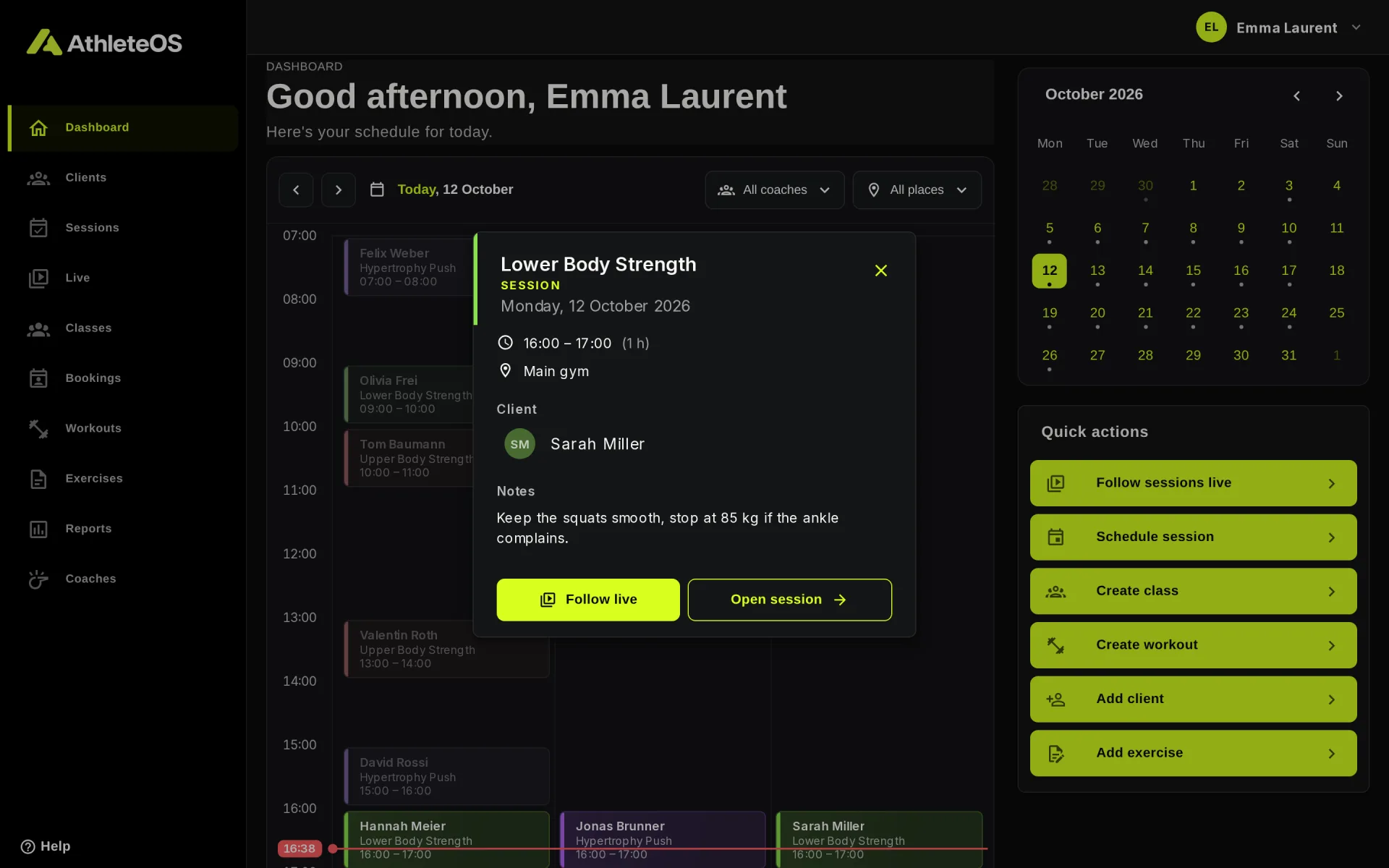
From there:
- Follow live (sessions of today) adds the session to the Live page.
- Open session or Open class opens its page.
- Click a client to open their profile.
Quick actions
The Quick actions card takes you straight to what you do most: Follow sessions live, Schedule session, Create class, Create workout, Add client and Add exercise.
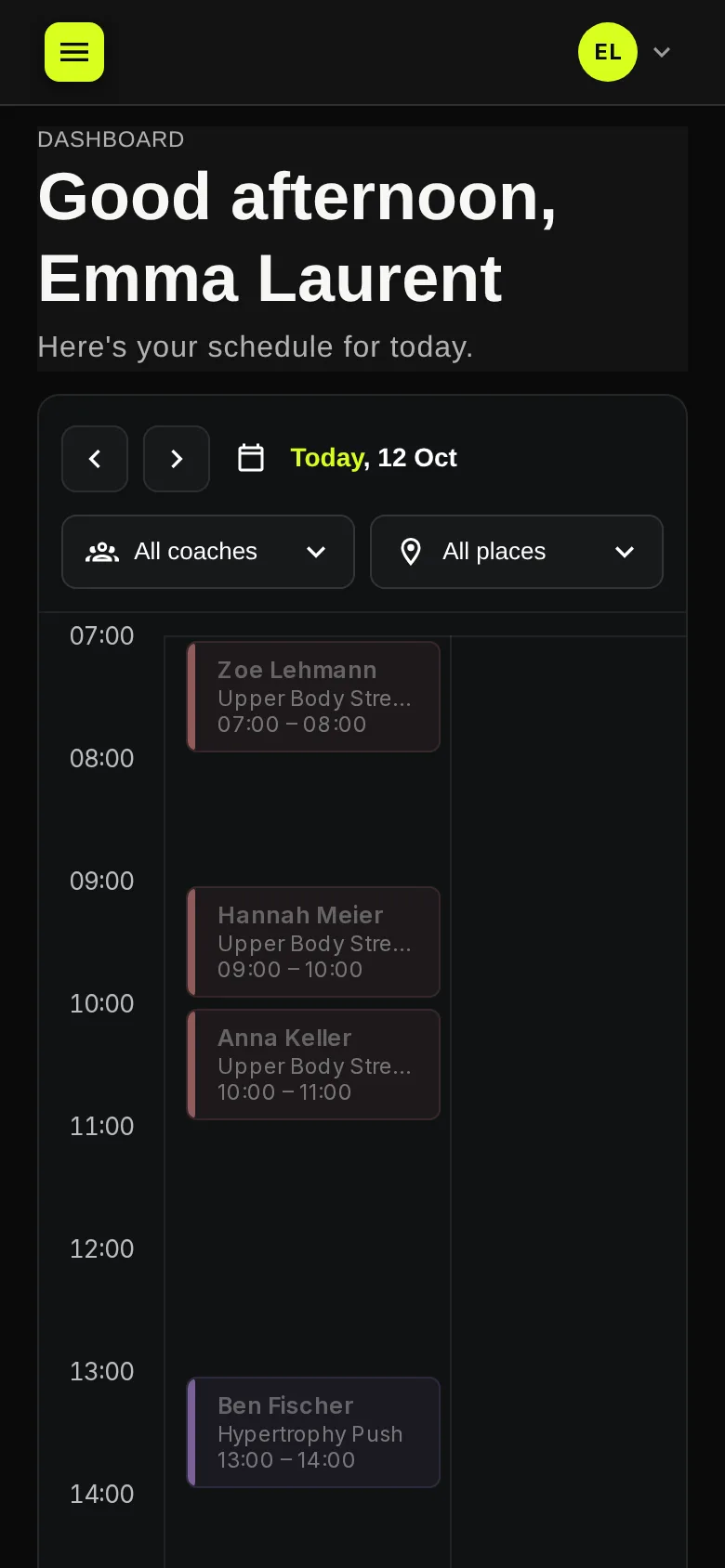
On a phone
The dashboard works on a phone too. The left menu then opens from the button at the top left.
The menus
- The left menu has every page: Dashboard, Clients, Sessions, Live, Classes, Bookings, Workouts, Exercises, Reports and Coaches. Some only show on certain plans, or to admins.
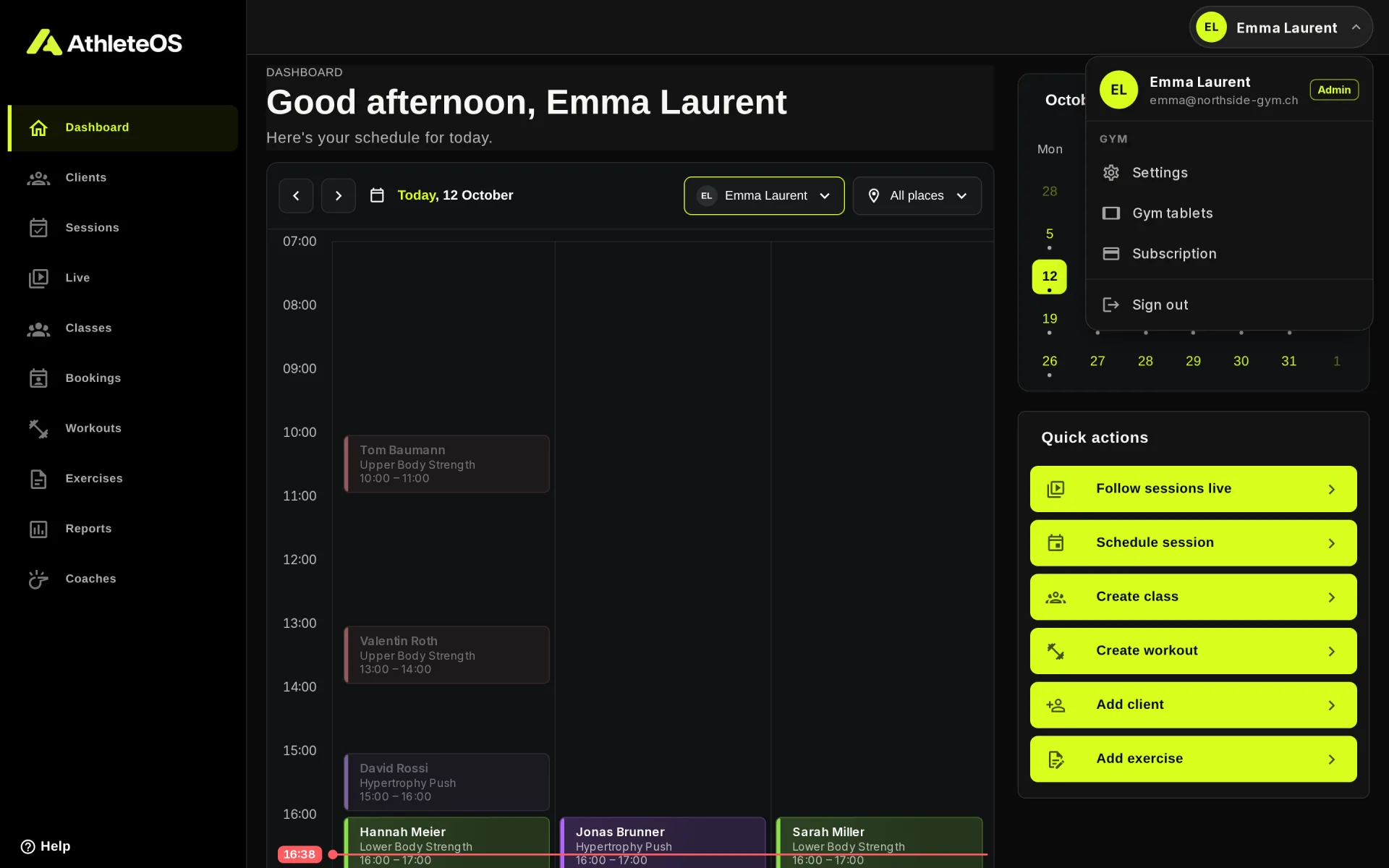
- The menu under your name, top right, has Sign out. Admins also find Settings, Gym tablets and Subscription there.
- Help, at the bottom of the left menu, has Support, to email us.