
Bookings
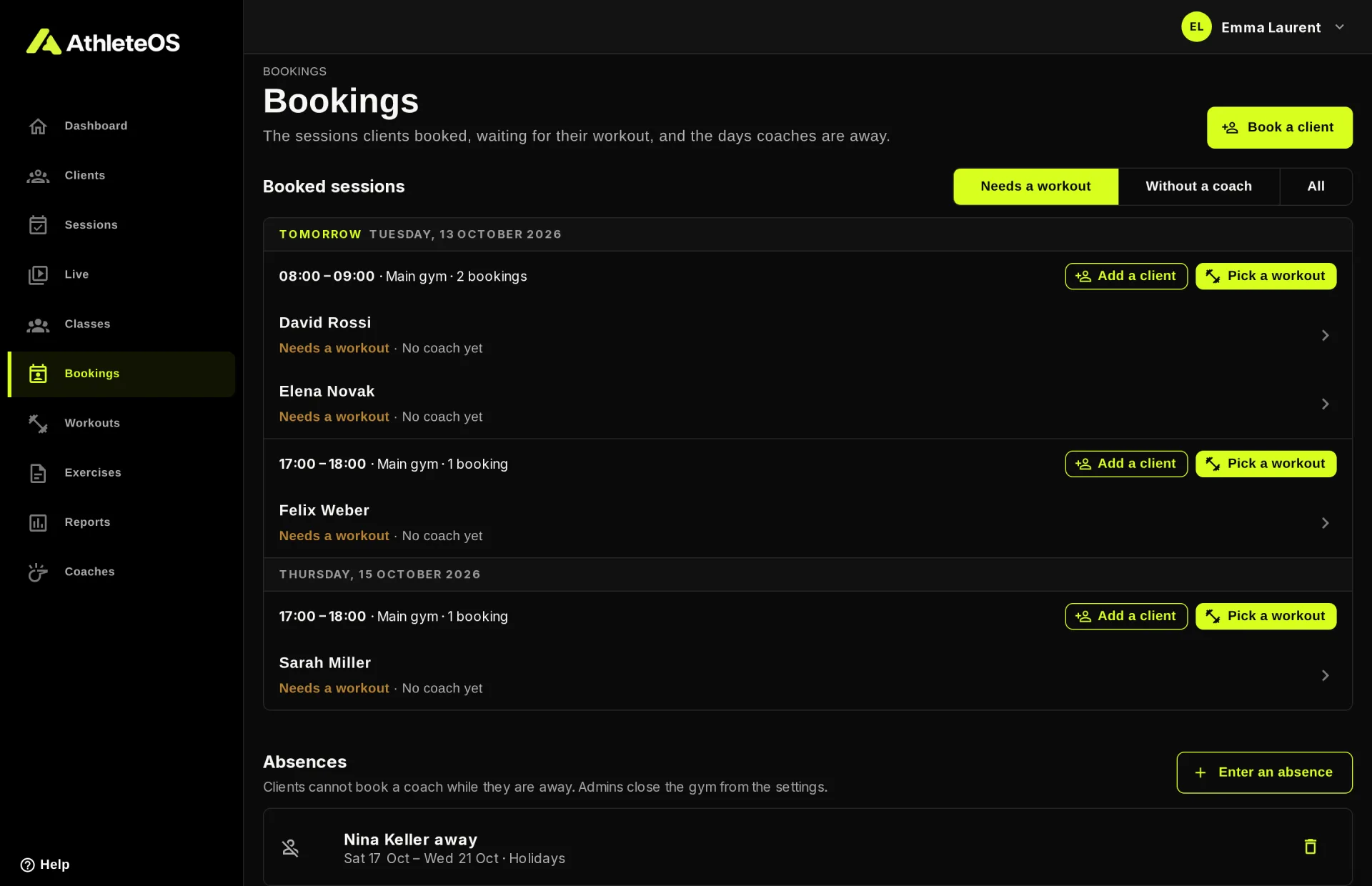
With session booking, clients book a slot themselves, then a coach picks the workout of the session. The Bookings page is where coaches see those bookings, book clients into free slots, and enter their absences.
The page appears in the left menu once an admin has turned on session booking (Studio plan and above). See Settings to set it up.
How session booking works
- An admin sets booking periods, e.g. every weekday from 07:00 to 12:00, cut into 1-hour slots with 2 places each.
- A client books a free slot from their app. The session shows as Needs a workout.
- The coach of the slot gets an email: "Sarah Miller booked a session".
- A coach picks the workout. The session is then ready for the client.
Pick the workout of booked sessions
The Booked sessions section lists the sessions to come, by day and by slot. Filter with Needs a workout (the default), Without a coach or All.
- On a slot, click Pick a workout.
- Choose the Workout. It's given to every session of the slot that's waiting for one.
- Keep I coach the sessions without a coach ticked to become their coach.
- Click Plan 2 sessions.
Click a client in the list to open their session, e.g. to give them another workout than the rest of the slot.
Book a client into a free slot
Coaches can book clients themselves, for instance when a client calls the gym.
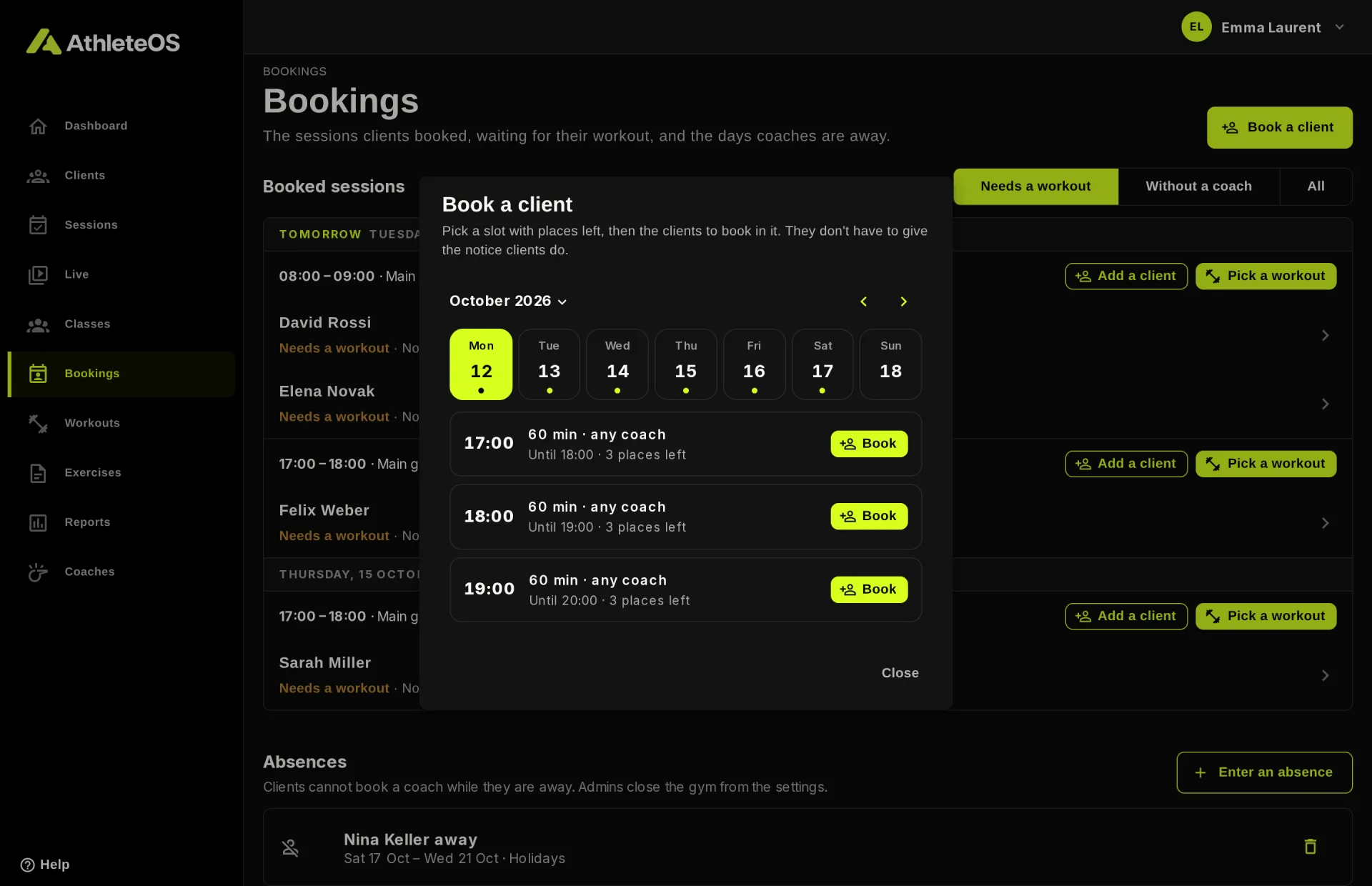
- Click Book a client, or Add a client on a slot that has places left.
- Pick a location, if the gym has several.
- Find a day in the week strip. Days with free slots have a dot. Tap the month to open a calendar.
- Click Book on a slot.
- Pick the clients to book, then click Book 1 client.
Coaches don't need to give the notice clients do: they can book a slot starting right now. If the slot belongs to another coach, that coach gets an email.
Absences
Clients can't book a coach while they're away. The other coaches' slots stay open.
- In Absences, click Enter an absence.
- Pick the First day and the Last day. Untick The whole days for a few hours only.
- Add a Reason if you like, e.g. "Ill".
- Click Enter absence.
Admins can enter an absence for any coach. Other coaches enter their own.
WARNING
An absence doesn't cancel the sessions already planned. AthleteOS tells you how many remain: move or cancel them yourself.
To close the whole gym, e.g. for a public holiday, admins add a closure in the settings instead.