
Gym tablets
A gym tablet stays at the gym, e.g. at the front desk. Clients pick their name on it, enter their PIN, then see their sessions and fill in their workout without their phone, one after the other. Gym tablets are part of the Studio plan and above.
Admins manage them from the menu under their name, top right: Gym tablets.
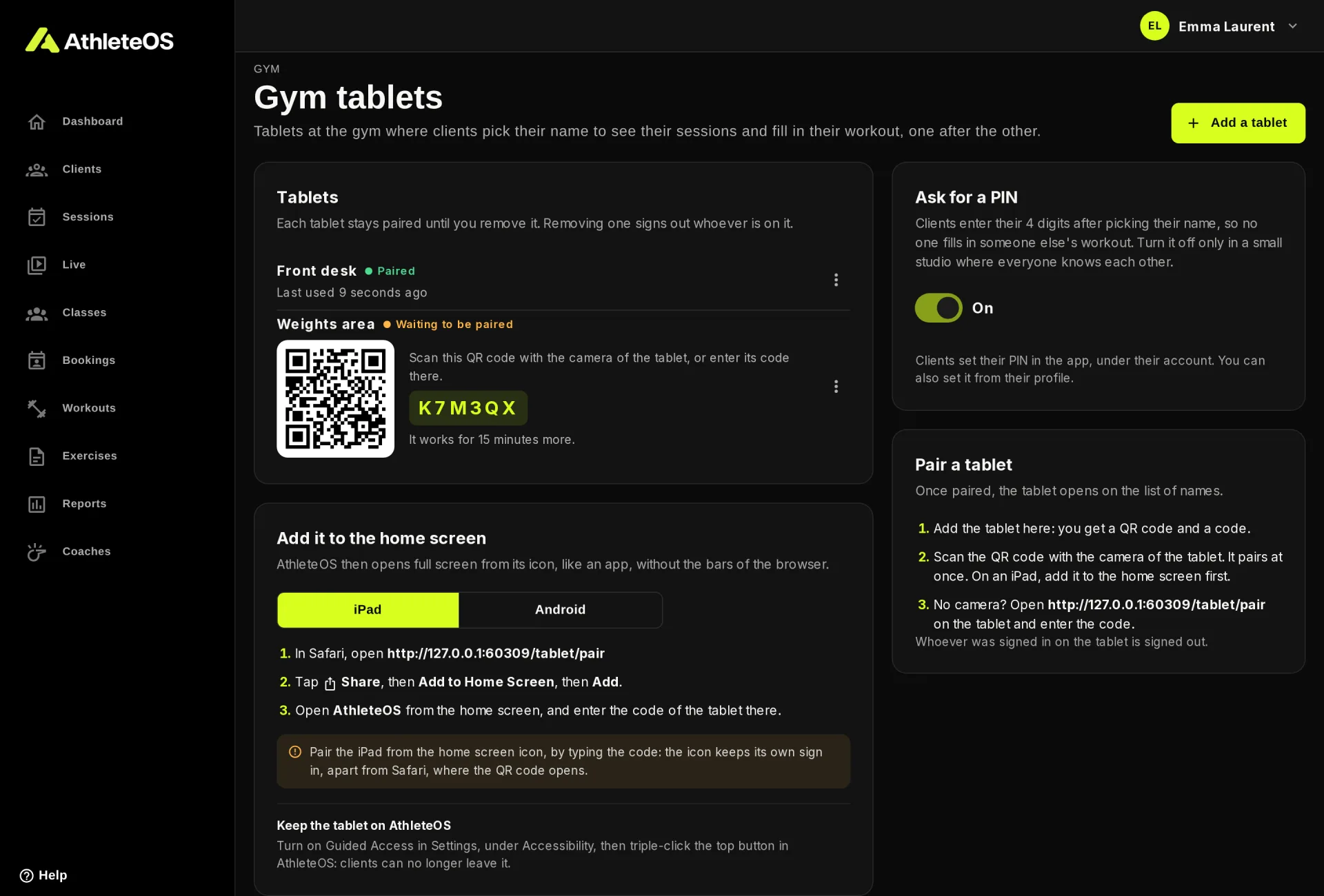
Add and pair a tablet
- Click Add a tablet.
- Name it after where it is, e.g. "Front desk", and click Add tablet.
- A QR code and a 6-character code appear. They work for 15 minutes.
- On the tablet, scan the QR code with the camera. It pairs at once.
No camera? On the tablet, open the address shown under Pair a tablet (it ends with /tablet/pair) and type the code.
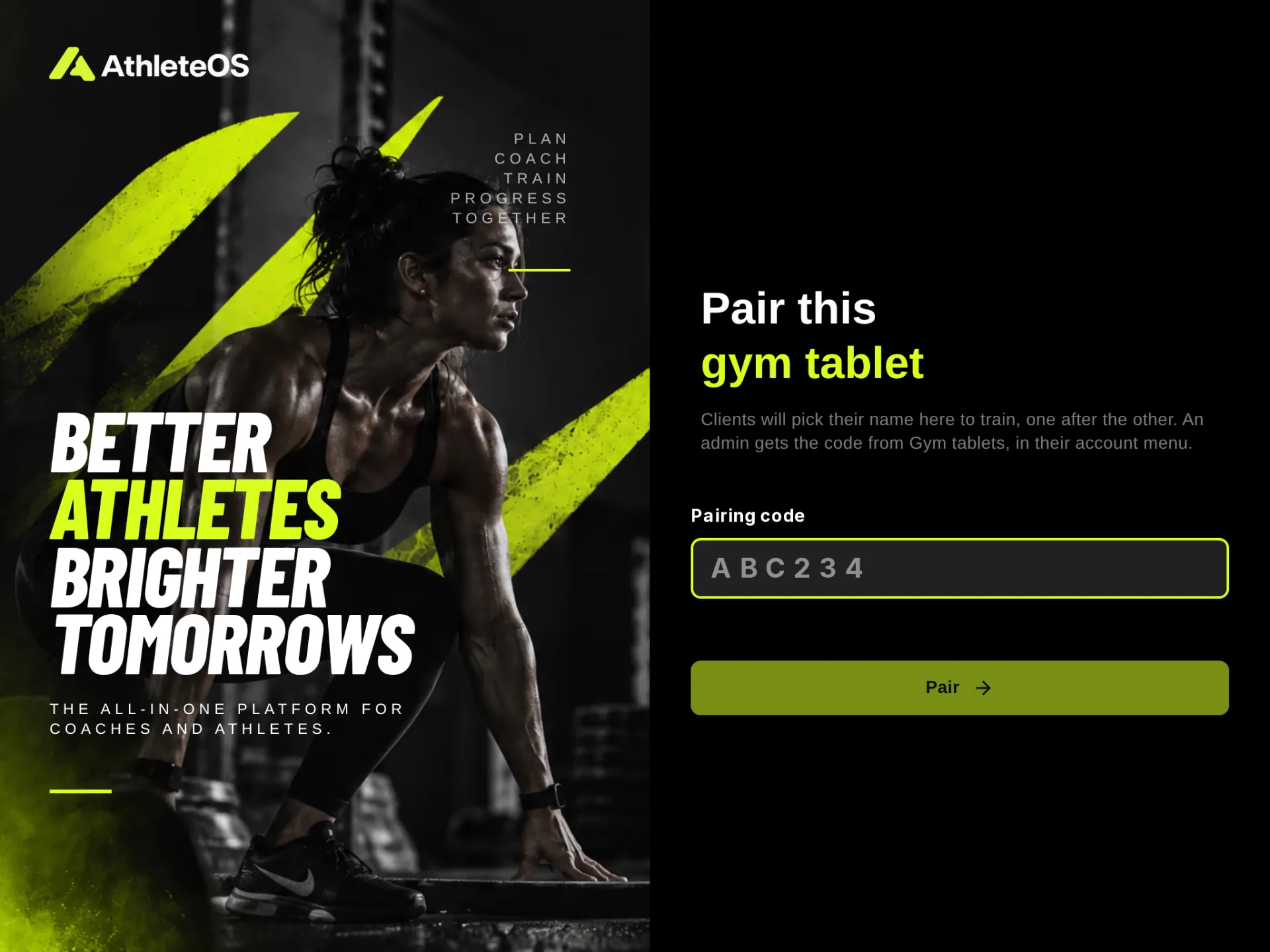
Once paired, the tablet opens on the list of names. Whoever was signed in on that browser is signed out.
On an iPad, add it to the home screen first
Then AthleteOS opens full screen, like an app. On an iPad, the home screen icon keeps its own sign-in, apart from Safari, so pair it from the icon by typing the code:
- In Safari, open the address of the pairing page.
- Tap Share, then Add to Home Screen, then Add.
- Open AthleteOS from the home screen, and type the code of the tablet there.
On Android, scan the QR code in Chrome, then choose Add to Home screen or Install app in the menu.
Keep the tablet on AthleteOS
- iPad: turn on Guided Access in Settings, under Accessibility, then triple-click the top button in AthleteOS.
- Android: turn on App pinning in Settings, under Security, then pin AthleteOS from the recent apps.
Clients then can't leave the app.
What clients see on a tablet
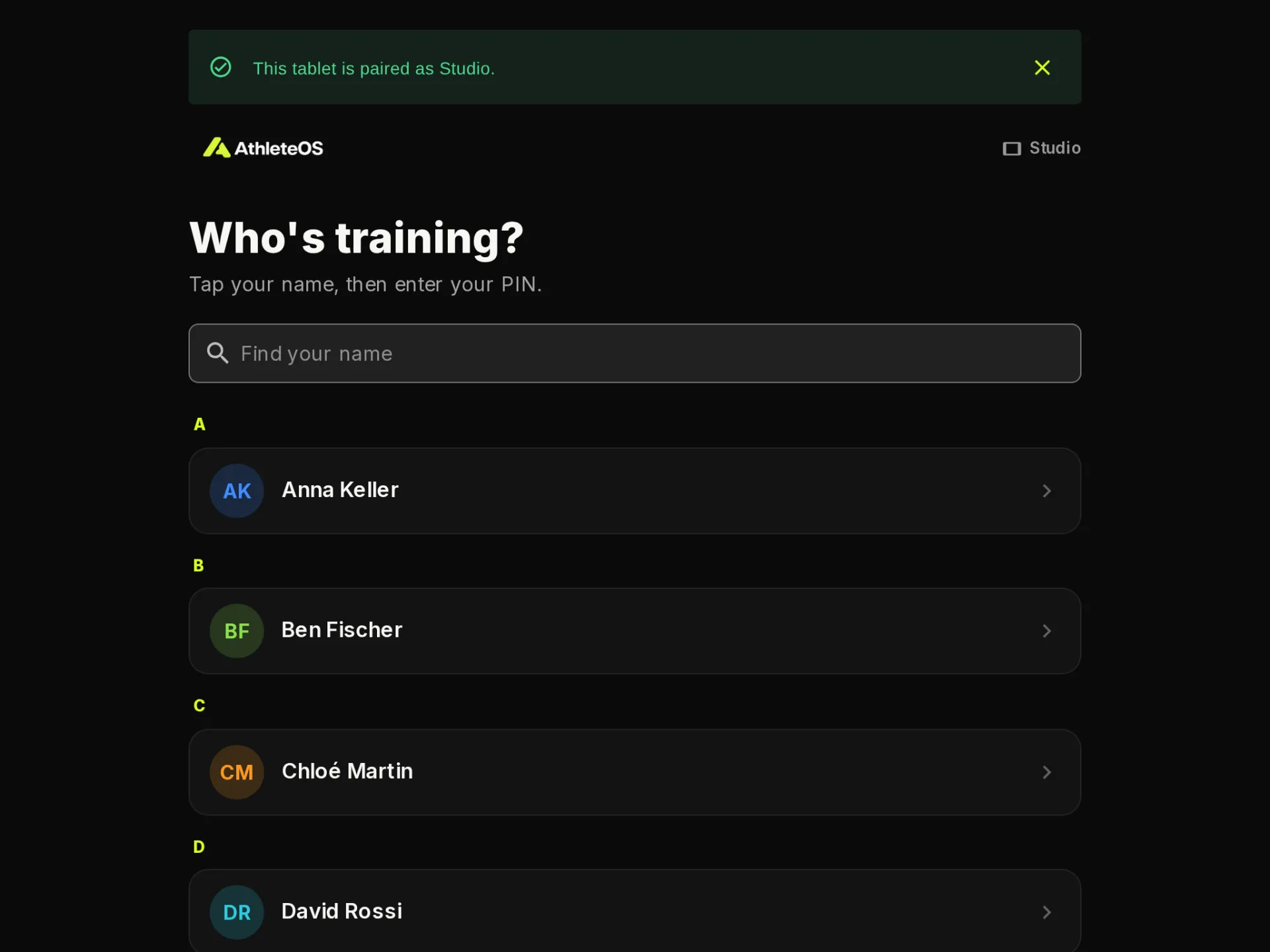
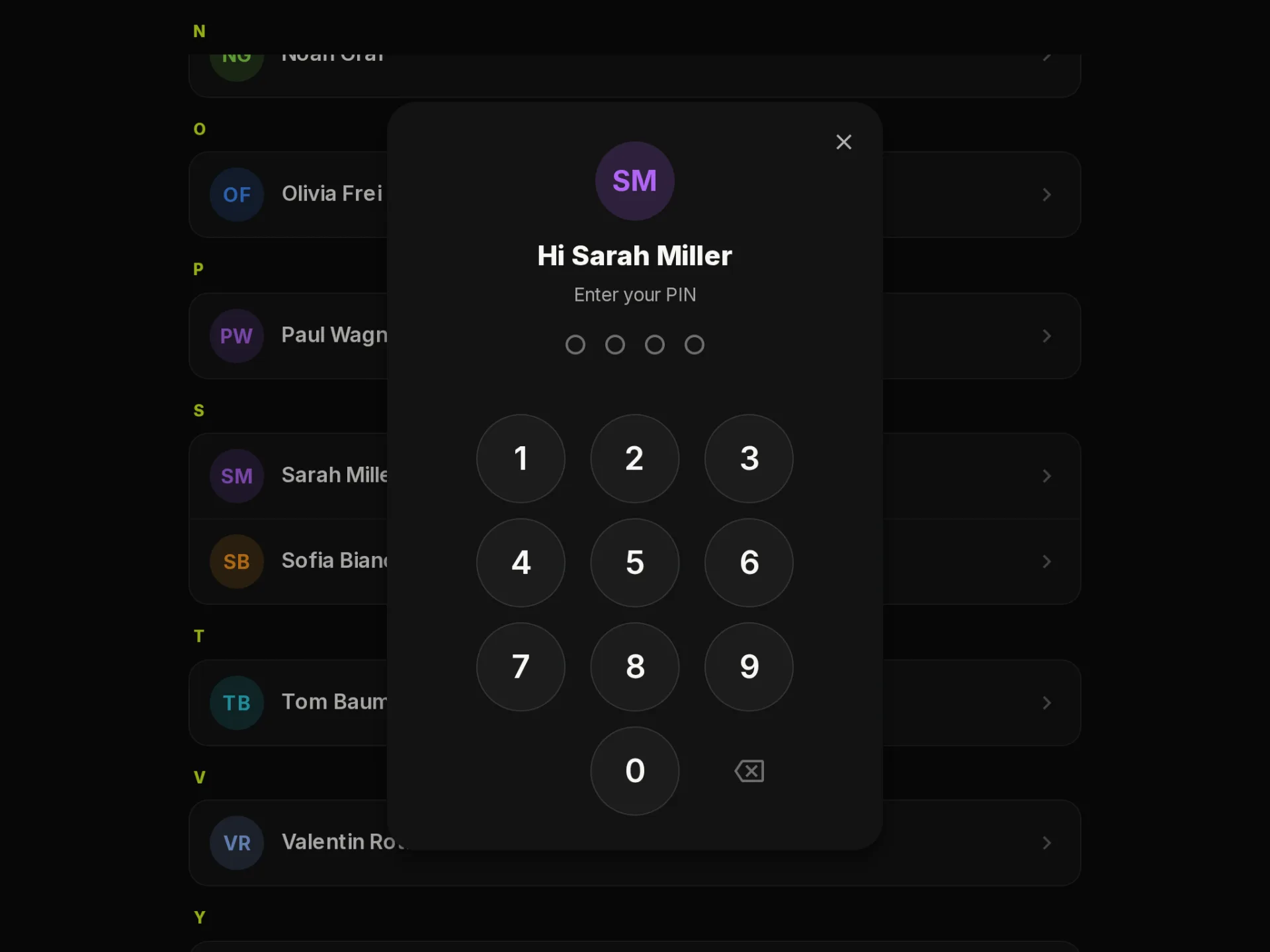
- The client finds their name. Find your name searches the list.
- They enter their 4-digit PIN.
- They see their sessions, fill in their sets, and check their progress and history.
- Switch athlete, or Done, next athlete at the end of a workout, takes the tablet back to the list.
On a tablet, clients can't book, manage classes, set their PIN, download their data or delete their account: those stay in the app on their phone. Their email isn't shown.
Automatic sign-out
So the next client doesn't land in someone else's workout:
- After 2 minutes without a touch, the tablet asks Still there? and goes back to the list 20 seconds later.
- During a workout in progress, it waits 45 minutes before asking.
Wrong PINs
After 5 wrong tries for a client, or 15 wrong PINs on a tablet, PINs are refused for 5 minutes.
PINs
Clients set their PIN in their app, under their account: Gym tablet PIN. A coach can also set it from the profile of the client. A client without a PIN sees a message telling them how to get one.
Ask for a PIN
Ask for a PIN on the gym tablets is on by default. Turn it off only in a small studio where everyone knows each other: anyone at the tablet could then open any client by tapping their name.
Manage your tablets
- New code, or Pair again in the ⋮ menu, gives a tablet a new code, e.g. to pair a replacement. The tablet paired before keeps working until the new code is used.
- Remove unpairs a tablet and signs out whoever is on it.
A tablet stays paired as long as it's used at least once every 30 days.