Live
The Live page lets you follow several clients training at the same time, and tick off their sets as they go. It's made for the floor of the gym, on a tablet or a big screen. Open Live in the left menu.
Pick the sessions to follow
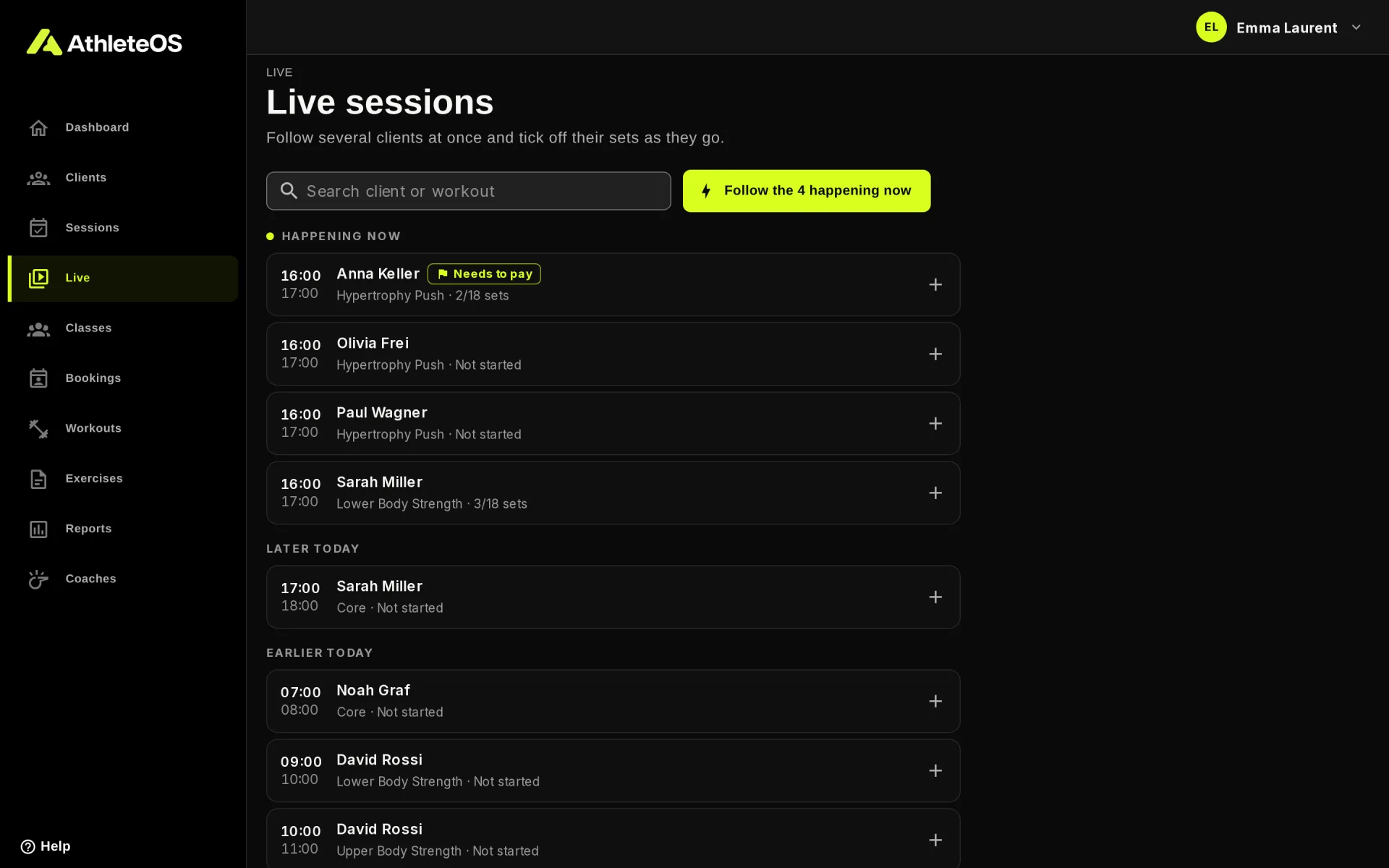
When nothing is on screen yet, the page lists the sessions of today that have a workout:
- Happening now, with a live dot,
- Later today,
- Earlier today.
Click a session to add it. When several are happening now, Follow the 3 happening now adds them all at once. Search by client or workout with Search client or workout.
To add more later, click Add session, or the Follow another session tile. You can also start from the dashboard (Follow live on a session) or from the page of a session.
TIP
The sessions you follow are remembered for the day on this device. Leave the page and come back: they're still there.
What each panel shows
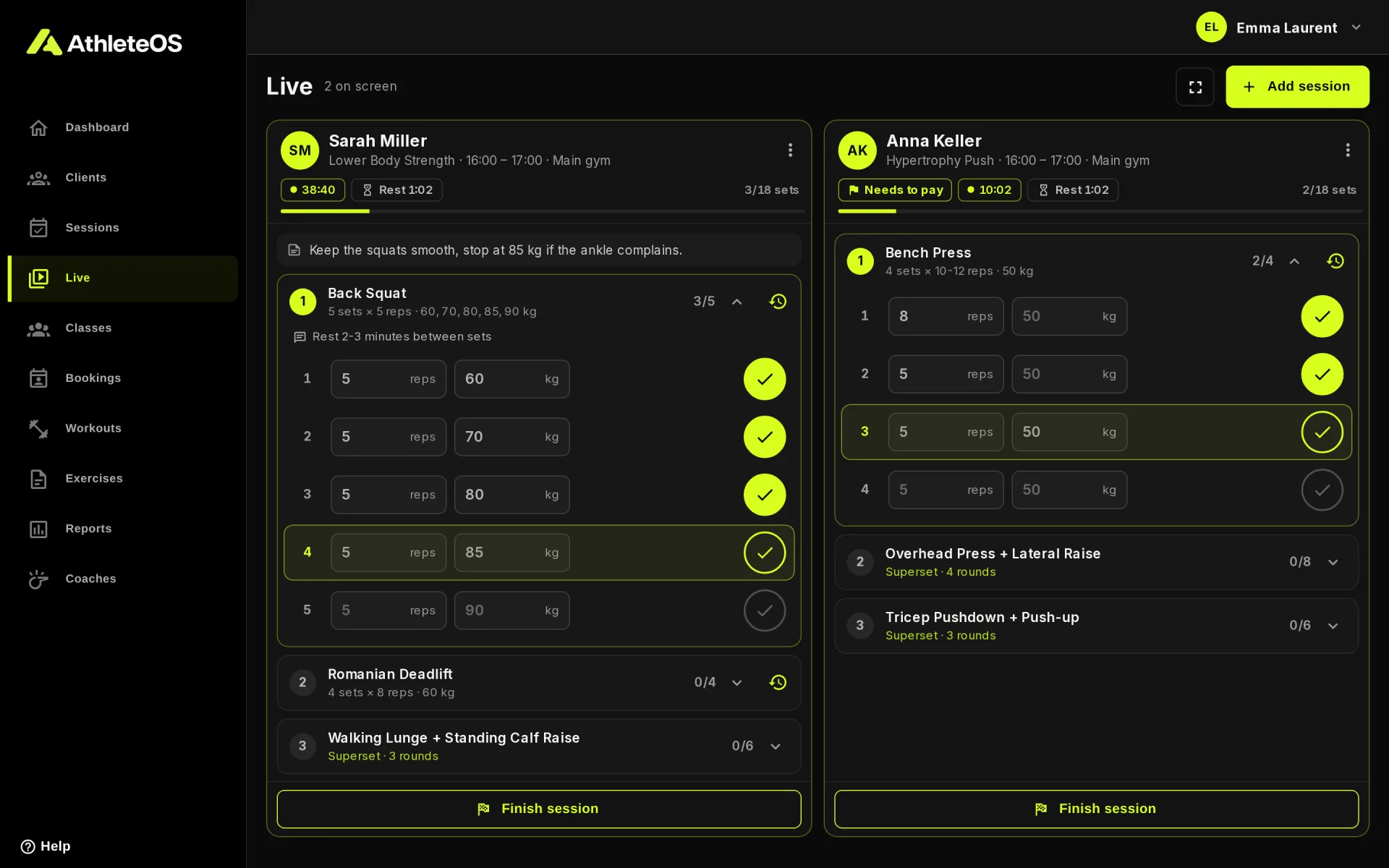
- The client, the workout, the time and the place. Click the name to open their profile.
- The client's status, like "Injured".
- A running clock since the session started, or Done in 48 min once finished.
- Rest: the time since the last logged set. It turns into a warning after 3 minutes without a set.
- How many sets are done, with a progress bar.
- The note you wrote for the client.
- The exercises, one block each. The current one opens by itself, and the panel scrolls to keep the next set in view.
Each exercise also shows its video, the note from the workout and the notes the client wrote. The clock button opens the history of the client on that exercise: their best values, a chart and their past sessions.
Tick off sets
Each set has fields for what the exercise records: reps, kg, sec or m. Empty fields show a suggestion in grey: the values of the previous set, or the target of the workout.
To log a set, either:
- tap the check button: it saves what you typed, or the suggestion for empty fields,
- press Enter,
- or type a value and leave the row.
Tap the check of a done set to undo it.
The first set logged starts the session. What the client logs on their phone shows up here within about 10 seconds, and what you log shows up on their phone.
Start, finish and reopen
The button at the bottom of each panel changes with the session:
- Start session starts the clock without logging a set.
- Finish session ends it. It lights up once every set is done, but you can finish at any time.
- Reopen session opens a finished session again, keeping its start time.
The ⋮ menu of a panel has Edit session, Back to not started (before any set is logged) and Stop following.
Full screen and phones
- Full screen hides the menus, for a screen on the wall.
- On a wide screen, sessions sit two per row.
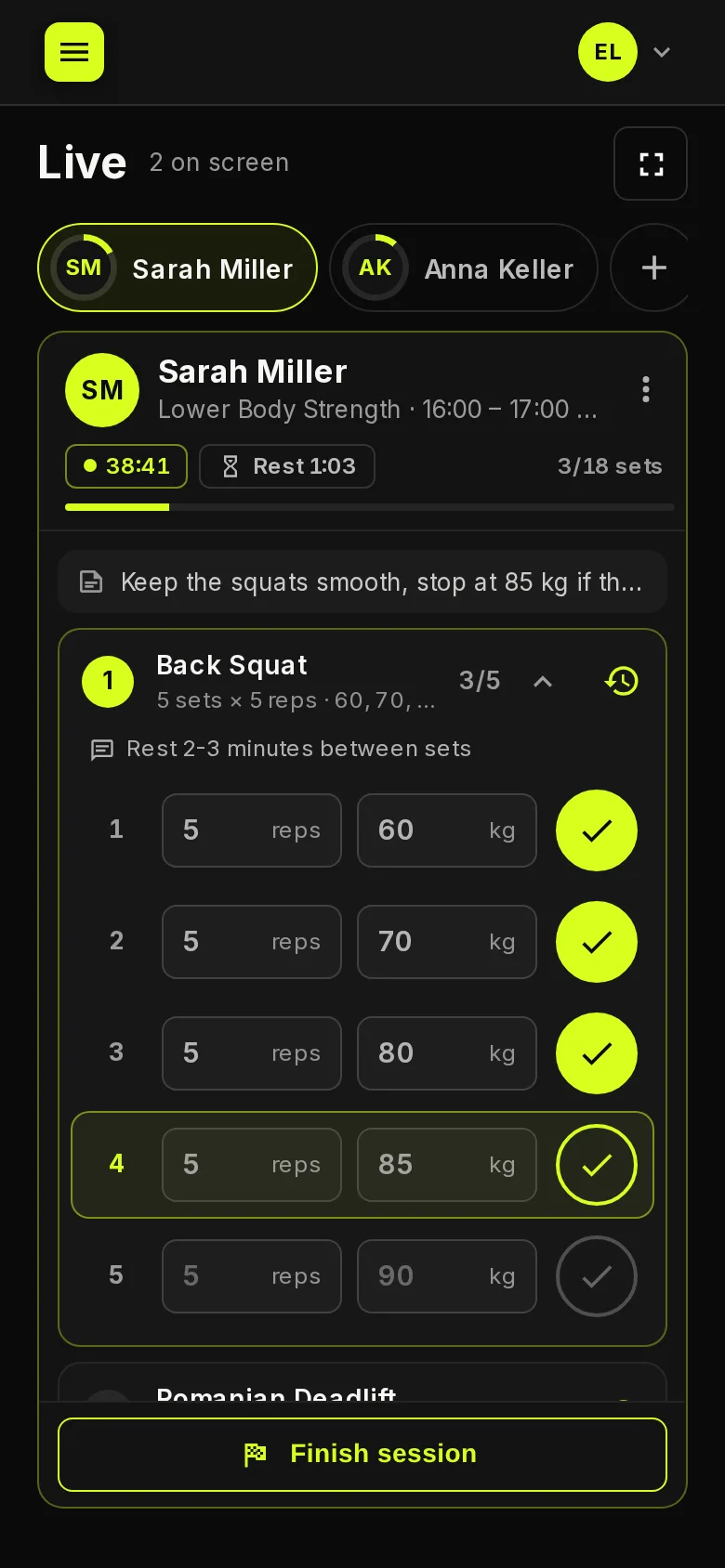
- On a phone, you see one session at a time, with a tab per client at the top. The ring around each avatar shows their progress.